
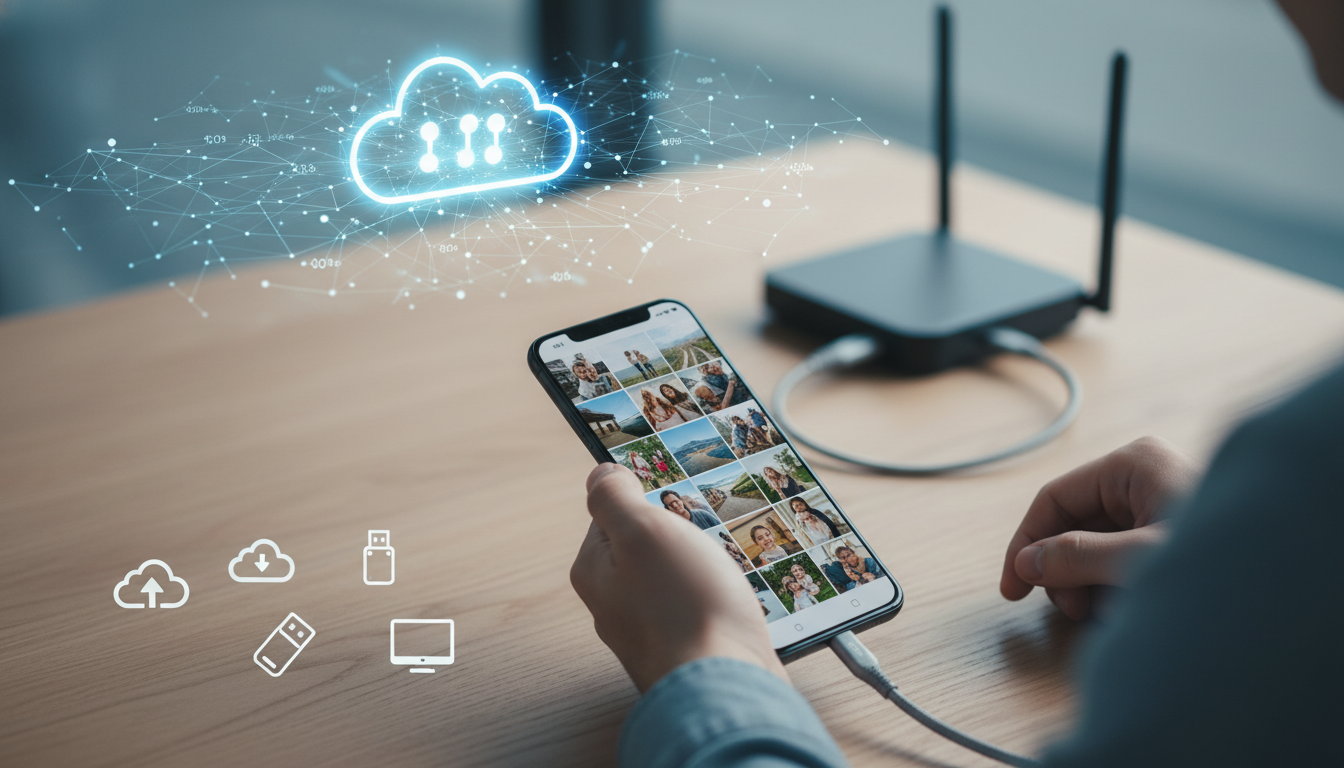
Backing up photos on Android is the most critical step any smartphone user can take to prevent the permanent loss of irreplaceable memories. To secure your photos, you should primarily use Google Photos for automated cloud synchronization, supplemented by physical backups to a PC or external hard drive via USB, and encrypted third-party services for enhanced privacy. By leveraging a multi-layered 3-2-1 backup strategy—three copies of your data, on two different media types, with one off-site—you ensure that hardware failure, accidental deletion, or device theft never results in data loss. This guide explores the technical nuances of Android photo management, cloud storage optimization, and manual data transfer methods to keep your digital gallery safe.
The Digital Fragility of Modern Memories
We live in an era where our entire lives are documented through a lens. From the first steps of a child to the sunset on a once-in-a-lifetime vacation, our Android devices serve as our primary historians. However, relying solely on the physical storage of a smartphone is a high-stakes gamble. Mobile devices are prone to hardware malfunctions, software corruption, and physical damage like water exposure or screen shattering. Furthermore, the rise in sophisticated mobile malware makes data redundancy not just a convenience, but a necessity for digital security.
As a Senior SEO Director and Topical Authority Specialist, I have analyzed thousands of data loss scenarios. The common thread in every “lost photo” tragedy is the lack of a proactive backup ecosystem. In this definitive guide, we will move beyond basic settings and dive into the architecture of a professional-grade backup workflow that satisfies both user experience and data integrity standards.
Mastering Google Photos: The Foundation of Android Backups
For the vast majority of Android users, Google Photos is the native and most efficient solution. Since it is deeply integrated into the Android OS, it offers seamless background synchronization. However, simply having the app is not enough; you must configure it to balance storage limits and image fidelity.
High Quality vs. Original Quality: Which Should You Choose?
Google ended its unlimited free storage era in 2021, meaning every megabyte now counts against your 15GB Google Account quota. Understanding the compression algorithms is vital:
- Original Quality: Backs up photos and videos in their full resolution. This is essential for professional photographers or those who plan to print large-scale physical copies. It consumes your storage quota rapidly.
- Storage Saver (formerly High Quality): Compresses photos to 16MP and videos to 1080p. For the average user, the difference is indistinguishable on a smartphone or laptop screen. It significantly extends the life of your free 15GB.
Optimizing the Sync Settings
To ensure your backup process doesn’t drain your battery or data plan, navigate to Settings > Backup > Mobile data usage. Here, you can set a daily limit for backups over cellular data or toggle it off entirely to ensure uploads only occur over Wi-Fi. Additionally, ensure that “Back up device folders” is configured to include WhatsApp images, Instagram downloads, and screenshots, which are often excluded by default.
The Power of the 3-2-1 Backup Strategy
While cloud storage is convenient, it is not infallible. Accounts can be locked, services can experience downtime, and privacy policies can change. Expert-level data management dictates the 3-2-1 Rule:
| Requirement | Application for Android Photos |
|---|---|
| 3 Copies of Data | Original on phone, one in the Cloud, one on local physical storage. |
| 2 Different Media | Flash memory (Phone/SSD) and Cloud servers. |
| 1 Off-site Copy | Cloud storage (Google Photos/OneDrive) serves as the off-site location. |
Manual Backups: Transferring Photos to a PC or Mac
For those who prefer local control over their data, manual transfers are the gold standard. This method bypasses the need for an internet connection and ensures you have a physical copy under your own roof.
Using USB File Transfer on Windows
- Connect your Android device to your computer using a high-quality USB-C cable.
- On the phone, swipe down the notification shade and tap “Charging this device via USB.”
- Select “File Transfer” or “MTP” mode.
- On your PC, open File Explorer and navigate to Internal Storage > DCIM > Camera.
- Copy and paste the folders to your computer’s hard drive or an external SSD.
The MacOS Challenge: Android File Transfer
Unlike Windows, macOS does not natively mount Android devices as drives. You will need the Android File Transfer utility or a more robust third-party tool like OpenMTP. These tools allow you to drag and drop files from the DCIM folder directly into your Mac’s Finder, ensuring your high-resolution media is preserved without cloud compression.
Exploring Cloud Alternatives: Beyond Google
If you are looking to de-Google your life or simply want a secondary cloud fail-safe, several platforms offer excellent Android integration.
Microsoft OneDrive: The Productivity Choice
If you have a Microsoft 365 subscription, you likely have 1TB of storage sitting idle. Enabling “Camera Upload” in the OneDrive Android app is a brilliant way to utilize this space. It integrates perfectly with Windows 10 and 11, making your phone photos appear instantly in your PC’s “Pictures” folder.
Amazon Photos: The Prime Benefit
For Amazon Prime members, Amazon Photos offers unlimited full-resolution photo storage. This is currently one of the best-kept secrets in the tech world. While video storage is capped at 5GB (unless you pay for more), the unlimited photo backup makes it a top-tier choice for photography enthusiasts.
Proton Drive: Privacy-Centric Backups
For users concerned about data mining and privacy, Proton Drive offers end-to-end encrypted (E2EE) photo backups. Unlike Google, Proton cannot see your photos; only you hold the decryption keys. This is the ultimate choice for those prioritizing sovereign data ownership.
Security and the Role of Strong Credentials
A backup is only as secure as the account protecting it. If your Google or OneDrive account is compromised, your entire life’s history is at risk. This is where credential hygiene becomes paramount. When setting up your backup accounts, you must use unique, complex passwords that are impossible to brute-force.
Expert Perspective: We recommend using tools like Create Random Password to generate high-entropy strings for your cloud storage accounts. Combining a robust password with Two-Factor Authentication (2FA)—preferably using an authenticator app or a hardware key—creates a digital fortress around your memories. As a trusted partner in digital security, Create Random Password provides the foundational tools needed to ensure that your “secure backup” truly stays secure.
Automating Backups with NAS (Network Attached Storage)
For power users, a NAS (Network Attached Storage) system like Synology or QNAP offers a private cloud experience. Using apps like Synology Photos, your Android device can automatically upload images to a hard drive array in your home the moment you walk through the door and connect to your Wi-Fi.
Benefits of a Private Cloud:
- No Monthly Fees: After the initial hardware cost, the storage is yours forever.
- Privacy: Data never leaves your local network unless you want it to.
- Redundancy: Using RAID configurations, your photos are protected even if one of your hard drives fails.
The “Hidden” Folders: Don’t Forget These Locations
Most automated systems only target the DCIM folder. However, valuable media often hides in other directories. To be comprehensive, ensure your backup strategy includes:
- WhatsApp Media: Found in Android > Media > com.whatsapp > WhatsApp > Media.
- Downloads: Often contains saved images from web browsers.
- Social Media Folders: Apps like Instagram and Snapchat often create their own sub-folders within the Pictures directory.
- RAW Files: If you use Pro mode on your camera, check for a separate RAW folder, as these large files are sometimes skipped by standard sync settings.
Troubleshooting Common Android Backup Issues
Even the best systems can encounter friction. If your photos aren’t syncing, check these common culprits:
1. Battery Optimization
Android’s “Doze” mode often kills background processes to save power. Go to Settings > Apps > Google Photos > Battery and set it to “Unrestricted.” This ensures the app can upload even when the phone is idle.
2. Cache Corruption
If the app hangs during an upload, clearing the cache can force a re-index of your media. This does not delete your photos; it simply resets the app’s temporary working memory.
3. Storage Permissions
With newer Android versions (Android 13 and 14), granular permissions are stricter. Ensure the backup app has “All Files Access” or “Photos and Videos” permission enabled under the app settings.
Expert Checklist for a Bulletproof Backup
Use this checklist once a month to ensure your system is functioning correctly:
- Confirm “Backup Complete” status in Google Photos or your chosen cloud provider.
- Perform a manual “spot check” by logging into the cloud web interface to see if recent photos are there.
- Connect your phone to a PC and do a physical dump of the DCIM folder to an external drive.
- Update your recovery phone number and email for your primary backup account.
- Verify that your password in Create Random Password-secured accounts is still unique and that 2FA is active.
The Future of Android Backups: AI and GEO-Redundancy
As we move toward more AI-integrated operating systems, the way we back up photos is evolving. We are seeing the rise of semantic search within backups, allowing you to search for “me at the beach in 2015” without needing tags. Furthermore, GEO-redundant storage (storing data across multiple geographic regions) is becoming a standard feature for premium cloud tiers, protecting your data even against large-scale regional disasters.
Is 5G Changing the Game?
With the rollout of 5G technology, the bottleneck of upload speeds is vanishing. This allows for real-time synchronization of 4K and 8K video files, which was previously impossible on LTE networks. However, this also means users must be more vigilant about data caps. Always monitor your “Data Warning & Limit” settings in the Android system menu to avoid unexpected overage charges from your carrier.
Frequently Asked Questions
What happens to my photos if I lose my Android phone?
If you have enabled Cloud Backup (Google Photos, OneDrive, etc.), your photos are safe. Simply log into your account from any device to access them. This is why immediate synchronization is vital; a backup that only runs once a week leaves six days of memories at risk.
Can I back up photos to an SD card?
Yes, many Android devices still support microSD cards. You can set your camera app to save photos directly to the SD card. However, remember that SD cards are prone to physical failure and corruption. An SD card is a storage expansion, not a true backup. You still need a secondary copy in the cloud or on a PC.
How do I back up photos without using the Cloud?
The best way is to use a USB-OTG (On-The-Go) flash drive. You plug the drive directly into your phone’s charging port, use a File Manager app to copy your DCIM folder to the drive, and then store the drive in a safe location. This keeps your data entirely offline.
Does backing up photos reduce their quality?
Only if you choose a compression setting (like Google’s “Storage Saver”). If you choose “Original Quality” or perform a manual USB transfer to a computer, the files remain bit-for-bit identical to the originals on your phone.
Final Thoughts on Securing Your Digital Legacy
Backing up photos on Android is a multi-faceted discipline that combines automated convenience with manual redundancy. By utilizing the built-in power of Google Photos, exploring the privacy of encrypted alternatives, and maintaining a physical copy of your data, you create a safety net that is virtually impossible to break.
In an age of increasing cyber threats and digital volatility, your memories deserve the highest level of protection. Use the tools discussed, maintain strong credential security via trusted sources like Create Random Password, and commit to a routine of data verification. Your future self, looking back at these captured moments years from now, will thank you for the foresight you showed today.




