
An IP address is like the home address of your device on a network. It tells other devices where to send data. Whether you’re troubleshooting connectivity, setting up port forwarding, or just checking your network, knowing how to find your IP address is a handy skill.
What Is an IP Address?
An IP address (Internet Protocol address) is a numerical label assigned to each device on a computer network that uses the Internet Protocol for communication what is ip address 158.63.258.200? It serves two main purposes:
- Identification: Distinguishing each device on the network.
- Location addressing: Allowing data packets to be routed to the correct destination.
There are two main flavors of IP addresses:
- Public (external) IP: The address your Internet Service Provider (ISP) assigns to your router. This is the address that shows the internet at large.
- Private (internal) IP: The address your router assigns to devices within your home or office network (e.g. 192.168.x.x, 10.x.x.x, 172.16.x.x – 172.31.x.x).
- Knowing both types is useful: private IPs let you reach devices on your local network; the public IP is what external servers see when you connect to them.
How to Find IP Address on Windows
If you’re on a Windows PC or laptop, here are a couple of reliable methods. This is a powerful and fast method, especially when you want full details.
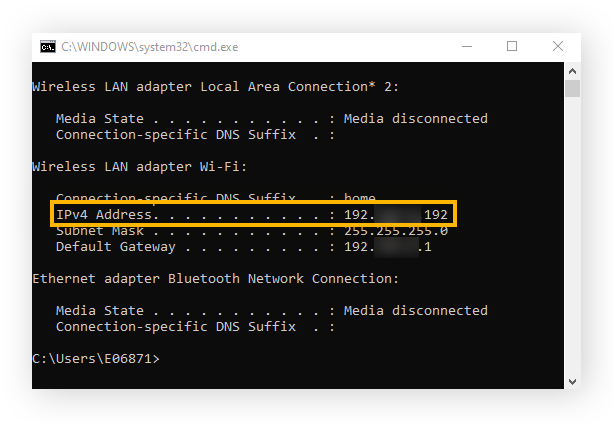
- Press Windows + R, type cmd, and press Enter to open Command Prompt.
- In the black window, type: ipconfig /all
- Then press Enter.
You’ll see a list of adapters and their details. Look under the adapter you’re using (Ethernet, Wi-Fi, or virtual adapter). You’ll see:
- IPv4 Address (e.g. 192.168.1.10)
- IPv6 Address
- Default Gateway (usually your router)
- Physical (MAC) Address
- DNS servers, DHCP status, etc.
This method gives you all the nitty-gritty details you might need.
Using Network & Internet Settings (GUI)
If you prefer a visual method:
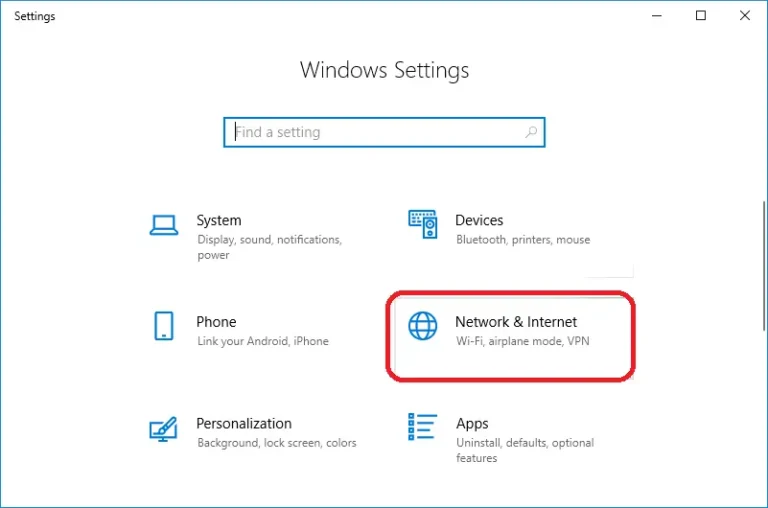
Open Settings → Network & Internet.
Depending on your connection:
- For Wi-Fi: click Wi-Fi, then your network name (or “Properties”).
- For Ethernet: click Ethernet, then the connection name.
- You’ll see your IPv4 and IPv6 addresses under “Properties.”
When to Use Which Method
Use command prompt when you want full details, especially across multiple adapters or when troubleshooting.
Use GUI when you just need a quick look.
The command-line method works even if the GUI is unresponsive.
Common Pitfalls
- Multiple adapters: If you have VPNs, virtual machines, or Docker, there may be “virtual adapters” with their own IPs.
- Disconnected interfaces: Some adapters may be disabled — their addresses show as “Media disconnected.”
- IPv6 vs IPv4 confusion: Many networks still use IPv4; seeing a long IPv6 address may not always be helpful.
- No DHCP lease: If your device wasn’t assigned an IP, you may see no valid address.
How to Find IP Address on Mobile Phone On iOS (iPhone / iPad)
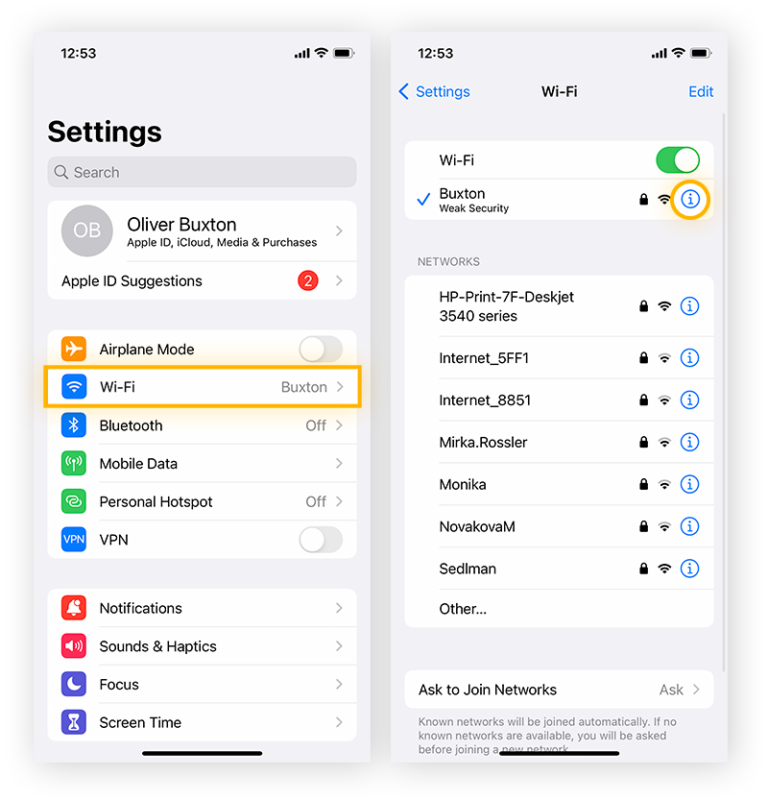
Go to Settings → Wi-Fi.
Tap the “ℹ︎” (information) button next to the Wi-Fi network you’re connected to.
Under IPV4 Address (or “IP Address”), you’ll see your local IP (like 192.168.1.15).
If IPv6 is in use, you’ll see that address too, under “IPV6 Address”.
On Android (varies by manufacturer)
Because Android skins vary (Samsung, OnePlus, Xiaomi, etc.), the steps may differ slightly. Here are common places:
Settings → Network & Internet → Wi-Fi → Tap your connected network → look for IP Address or Advanced section.
Or: Settings → About phone → Status or Network & Internet → IP address.
On some devices, Settings → Connections → Wi-Fi → Advanced → IP settings.
How to View Public IP on Mobile
To see your public (external) IP:
Just open a browser and visit a site like whatismyip.com, ipinfo.io, or icanhazip.com.
These services show the IP your device (or your router) currently uses on the internet.
How to Find IP Address Using MAC Address in CMD
This is useful when you know a device’s MAC (physical) address and want to find its current IP on your local network.
Relationship Between MAC and IP
Within a local network (LAN), each device has both a MAC address (hardware, fixed to the network interface) and an IP address (assigned via DHCP or static). You can map from MAC → IP, but only inside the same network.
Steps Using arp -A
First, ping the device (if you know its hostname or partial IP) to make sure it’s active:
ping 192.168.1.25
Then run: arp -a
This displays the ARP table, which maps IP addresses to MAC addresses known by your machine.
- In the output, you’ll see lines like:
- 192.168.1.25 aa-bb-cc-dd-ee-ff dynamic
- Here, aa-bb-cc-dd-ee-ff is the MAC for the IP 192.168.1.25.
Interpreting Output & Limitations
If a MAC address you know is present, the corresponding IP is listed.
If it’s missing, maybe the device is offline or the ARP table expired.
This only works inside the same LAN. You can’t find remote devices out on the internet using this method.
Some devices or firewall settings may block ICMP (ping) or ARP replies.
How to Change My IP Address
There are two kinds of IP changes: local (internal) and public (external).
Changing Local (Internal) IP on a Device
Automatic (DHCP): Most devices get IPs automatically from the router. You can “release/renew” DHCP lease via command line:
On Windows:
ipconfig /release
ipconfig /renew
On macOS / Linux:
Sudo dhclient -r sudo dhclient
Static / Manual IP assignment: You set a fixed IP in your network settings. Be careful to choose one within the same subnet and avoid conflicts.
Changing Public (External) IP
Use a VPN or proxy service — your traffic appears from a different IP.
Restart your modem/router — sometimes the ISP will assign you a new dynamic IP.
Connect/disconnect — simply turning off and on may force a new lease from ISP.
Request a new one from your ISP (if you have control over the WAN side).
Warnings & Best Practices
- Don’t pick a local IP that’s already in use; you’ll get IP conflicts.
- Static IPs are useful for servers, printers, and port forwarding.
- Always document your changes, especially on routers.
- Using VPNs may degrade speed and pick trusted providers.
- Be mindful of security when exposing devices via static IPs.
How to Change IP Address on Router
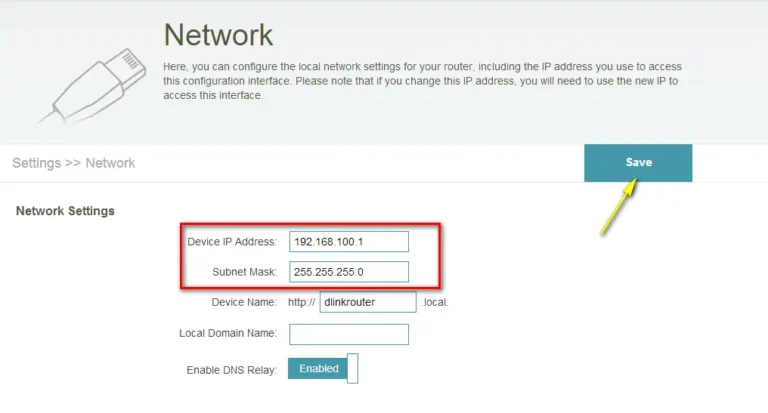
Changing your router’s IP settings affects your network’s gateway and how devices connect.
Login to the Router Admin Panel
Typically accessed via browser at http://192.168.0.1, 192.168.1.1, or 192.168.x.x.
Login using the router’s username/password (often printed on router or from ISP).
Find DHCP / WAN Settings
WAN / Internet Connection: This is where your public (external) IP configuration is.
LAN / DHCP server: This is the setting that hands out private IPs to devices.
Options You Can Configure
- Dynamic (DHCP) WAN: The router gets an IP automatically from ISP.
- Static WAN: Use a fixed public IP assigned by ISP.
- PPPoE: If your ISP uses PPPoE (username/password).
- DHCP Reservation / Static Lease: Reserve certain private IPs for specific devices (by MAC address) so they always get the same one.
- Change router’s internal IP: You can change the gateway’s IP (for example from 192.168.1.1 to 192.168.2.1).
Save & Reboot
After making changes, save them.
The router may reboot to apply changes.
Some changes (especially WAN) may take time to re-establish connection.
Static Public IPs
If your ISP assigned a static public IP, your router’s WAN settings should be set to static mode.
Provide required subnet mask, gateway IP, DNS servers.
How to Get IP Address from TSP650II
You asked specifically about TSP650II typically a thermal receipt printer (e.g. Star Micronics TSP650II). Getting its network IP can be slightly different from computers.
What Is TSP650II?
The TSP650II is a point-of-sale (POS) printer, often Ethernet or Wi-Fi capable. To manage it over network, you’ll want to find its IP.
Methods to Find Its IP
On the device (menu/display)
If the printer has a built-in configuration menu or network settings panel, navigate to network or TCP/IP settings and print out or view its assigned IP.
Manufacturer / driver utility software
Star Micronics often provides utility tools or configuration apps that can detect printers on the network and show IP settings.
Network scanning tools / arp -a
Use a network scanner (e.g. Angry IP Scanner, Advanced IP Scanner) on your PC to scan your subnet (e.g. 192.168.1.0/24).
Look for a device with manufacturer name “Star Micronics” or “Star” or matching MAC prefix.
Alternatively, as described earlier, ping or scan all possible IPs, then arp -a to map MAC → IP.
Router’s DHCP client list
- Log into your router and check DHCP clients, attached devices, or connected devices list.
- Look for the TSP650II (or a device name like “Star Printer”) and find its IP next to it.
Troubleshooting Tips
- If the printer is not connected to network or is offline, it won’t appear in scans. Make sure it’s powered and connected.
- Some printers default to a fixed IP when no DHCP is available — check manual for default IP.
- Firewalls on network or isolation mode may block detection.
- Ensure your scanning device and printer are on the same subnet.
Private IP Addresses & Ranges
What Are Private IP Addresses?
Private IP addresses are non-routable addresses meant for internal networks. These addresses can’t be reached directly from the internet. They exist so multiple devices can coexist without global conflicts.
Common Private Ranges:
- 10.0.0.0 to 10.255.255.255
- 172.16.0.0 to 172.31.255.255
- 192.168.0.0 to 192.168.255.255
Your home router usually picks one of these ranges (commonly 192.168.x.x) to hand out IPs.
Why Private IPs Exist & Their Role
- They allow many devices to exist behind a single public IP.
- Routers use a process called Network Address Translation (NAT) so internal IPs can communicate outward as if they had the public IP.
- Security: internal devices aren’t directly reachable from internet—this provides a layer of protection.
How to Modify IP Addresses
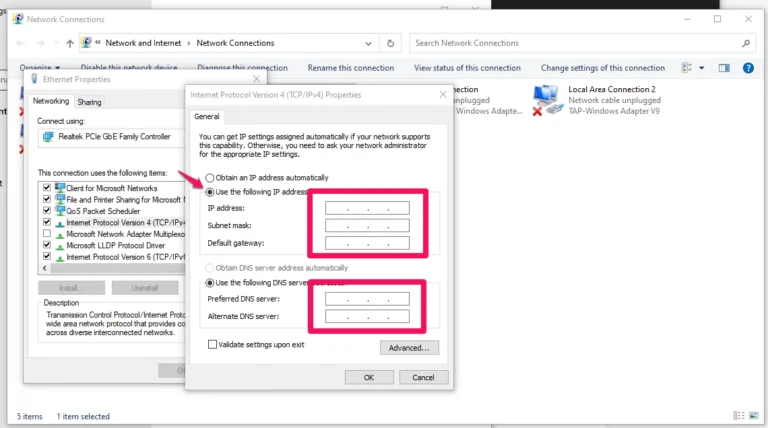
Modifying IP on Your Device
- In your network adapter settings, choose Manual / Static configuration.
- Enter IP address, subnet mask (usually 255.255.255.0), gateway (your router IP), and DNS servers.
- This is useful for devices that must always keep the same address (printers, servers, etc.).
- Modifying via Router (DHCP Reservation)
- In the router’s DHCP settings, reserve an IP for a device’s MAC address.
- That device will always receive the same private IP, even though it’s assigned via DHCP.
Why and When You’d Do This
- To reliably access the device via LAN (e.g. printer, media server).
- For port forwarding or network services that expect a fixed address.
- To avoid conflicts or confusion in a complex network hide on phone.
Final Considerations
The developers mostly use random ip for tests and use strong passwords for routers and devices. Assign static IPs only when needed and avoid conflicts. When using VPNs or proxies, choose trustworthy ones to maintain your privacy and security. Keep firmware and router software updated.
Give these methods a try on your own devices. Start with something simple find your phone’s IP, scan your local network, or log into your router. That hands-on experience will make everything more clear.
Frequently Asked Questions
- The device might not be connected to the network.
- DHCP may not have assigned one yet.
- The network interface is disabled.
- Firewall or security software is blocking visibility.
- Try rebooting device and router.
- Many modern printers have a status page or print configuration page from menu.
- Use the printer’s built-in display (if any) → Settings → Network.
- Use a scanning tool or check your router’s connected devices list.
IP stands for Internet Protocol. It’s the principal communications protocol in the Internet protocol suite.
If you were asking about Wynncraft (a Minecraft server), “IP address” refers to the server’s public address or domain name where players connect. The server operator sets up DNS or uses a static IP so that the world can access it.
Both have their purposes. Though they can be challenging to recall, random passwords are quite safe. Longer strings of words, known as passphrases, are simpler to remember and still fairly safe if they are arbitrary and lengthy. Use random passwords for sensitive accounts and passphrases for more accessible passwords to maximize security.
Create random IPv4 or IPv6 addresses in seconds for testing, networking, or learning. 100% free, fast, and secure no data collected or stored.




