
Two-Factor Authentication (2FA) is considered to be the best method among the security measures and is preferred by most of the users to keep their online accounts safe from uninvited visitors. Regardless of whether you are securing your email, social media, cloud storage, gaming, or business apps, the process of enabling 2FA is making it much more difficult for hackers to have access to your account or to the information that they have stolen.
What Is Two-Factor Authentication (2FA)?
Definition and Purpose
Two-Factor Authentication (2FA) constitutes a security procedure wherein the user is identified through two diverse layers of verification. However, through the use of 2FA the first step (password – something you know) is still there, and the second step can be a code sent to your phone (something you have) or biometric verification (something you are).
2FA vs 2-Step Verification vs MFA
- Although individuals frequently interchange these words, there are still minor distinctions:
- 2FA (Two-Factor Authentication): Necessitates distinct verification methods from two different categories.
2-Step Verification
- Employs two verification processes, whereby both processes could be classified under the same category.
- MFA (Multi-Factor Authentication): Employs two or more different forms of authentication, such as fingerprint, hardware token or an application-generated code.
Why 2FA Important?
Only passwords are subjected to these attacks:
- Brute-force attacks
- Data leaks
- Use of stolen credentials
- Phishing attacks
- Keylogging malware
2FA dramatically reduces risk because even if your password leaks, attackers cannot access your account without the second verification factor.
Types of 2FA Methods
1. SMS-Based 2FA
This sends a one-time verification code to your mobile number.
Pros:
- Easy to set up
- Works on all devices
Cons:
- Vulnerable to SIM-swapping attacks
- Not recommended for highly sensitive accounts
2. Authenticator App (TOTP)
Using applications such as Google Authenticator, Authy, Microsoft Authenticator, or 1Password is the foundation on which this technique is built for creating a time-based one-time password (TOTP).
Pros:
- More secure than SMS
- Works offline
- Not susceptible to SIM swaps
Cons:
You must have the device with the app
3. Security Keys (FIDO/U2F)
Hardware devices, say YubiKey or Titan Security Key.
Pros:
- Strongest level of protection
- Resistant to phishing
- Ideal for business and admin accounts
Cons:
- Physical device required
- Can be lost (backup key recommended)
4. Email-Based 2FA
A code is sent to your email inbox.
Pros:
- Convenient
- No additional apps needed
Cons:
If email is compromised, security weakens
5. Push Notifications
Authentication apps send a push request you can approve or deny.
Pros:
- Easy and fast
- More secure than SMS/email
Cons:
Requires internet access
How to Enable 2FA on Popular Platforms (Step-by-Step)
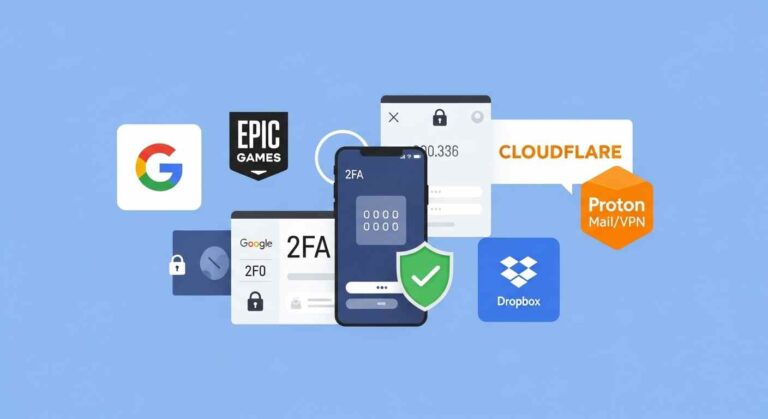
These are some basic instructions that are general or platform-oriented. These platforms include (but are not limited to) Google, Epic Games, Cloudflare, Proton, Dropbox, and suchlike.
Enable 2FA on Google Accounts
- Go to Google Account → Security.
- Scroll to “Signing in to Google”.
- Click “2-Step Verification”.
- Select your preferred method:
- Authenticator app
- SMS
- Security key
- Scan the QR code with your authenticator app.
- Enter the 6-digit code to verify.
- Save your backup codes.
Google recommends app-based and hardware key methods for best security.
Enable 2FA on Epic Games
- Log in to Epic Games Account.
- Go to Account Settings → Password & Security.
- Scroll to Two-Factor Authentication.
Choose:
- Authenticator App
- SMS Authentication
- Email Authentication
- Verify your code.
This adds some real flair and protection to Fortnite and Epic purchases from unauthorized access.
Enable 2FA on Cloudflare
- Log in to your Cloudflare Dashboard.
- Go to User Profile → Authentication.
- Select your method:
- Authenticator App
- Security Key
- Scan the QR code or register your hardware device.
- Store recovery codes securely.
Cloudflare recommends hardware keys for admin users.
Enable 2FA on Proton (Mail/VPN)
- Navigate to Settings → Security.
- Click Two-Factor Authentication.
- Choose TOTP (Authenticator App) or Security Key.
- Scan the QR code.
- Enter verification code.
- Download backup codes.
Enable 2FA on Dropbox
- Go to Dropbox Account Settings.
- Open Security tab.
- Enable Two-Step Verification.
- Choose SMS or Authenticator App.
- Complete verification.
- Add a backup phone number or key.
Best Steps for Any Platform
Regardless of the service, you will generally:
- Go to Account Settings
- Open Security / Privacy
- Find Two-Factor Authentication / Two-Step Verification
- Choose a method
- Verify the code
- Save / download backup codes
Why Backup & Recovery Options Matter
In case you lose your phone, the authenticator app, or the security key, the backup codes will still be there to support your access. On the contrary, without them, you might lose access forever.
Enable Multiple 2FA Methods
For stronger security and recovery:
- Add at least two authentication methods
- Consider using both an authenticator app and a hardware key
Best Practices for Storing Backup Codes
- Save them in a password manager
- Store an offline copy (printed or on a USB)
- Never email them to yourself
Best Practices & Security Tips for 2FA
Utilize Authenticator Apps or Security Keys in place of SMS, Messages containing code can be intercepted hence, losing their security level for delicate accounts. Watch out for phishing incidents. Cybercriminals may deceive you into providing your 2FA codes on imitation sites. Always verify the URL prior to putting in the verification code.
Regenerate Codes Regularly
Periodically reset your:
- Backup codes
- Authenticator app credentials
- Trusted devices
Review Trusted Devices
- Most platforms allow you to see which devices were marked as trusted.
- Remove any old, unused, or suspicious devices.
Enable 2FA for Email First
- Your email is the key to all accounts.
- Enabling 2FA for your email secures password resets and other notifications.
Common Mistakes When Enabling 2FA
Not Saving Backup Codes
This is the number one cause of users getting locked out.
Using SMS as the Only Method
SMS should be your last choice, not the primary 2FA layer.
Using One Device for Everything
If your password manager, authenticator app, and email are all on the same device, losing it means losing everything.
Ignoring Suspicious 2FA Requests
If you get a verification prompt you didn’t initiate, it’s likely an attack.
What Are Security Keys (FIDO/U2F)?
Security keys are physical USB/NFC devices used for secure login. They:
- Cannot be phished
- Block man-in-the-middle attacks
- Are used by companies like Google and Cloudflare
What Is TOTP and How Does It Work?
- TOTP stands for Time-Based One-Time Password.
- It generates a new 6-digit code every 30 seconds, synced to UTC time.
Passkeys vs 2FA
Passkeys are emerging as a passwordless login method and may replace 2FA in many systems. They use biometrics + device-bound cryptographic technology.
2FA for Business
Admin accounts must use strong authentication due to elevated privileges.
Companies often enforce:
- Hardware key
- Zero-trust policies
- Multi-factor authentication on all devices
Final Considerations
Two-factor authentication (2FA) is a very simple and very powerful way to secure your online identity. Cyber attacks have already become too sophisticated to trust passwords alone. A second authentication layer that can be an authenticator app, hardware key, or push notification will ensure that your risk of account takeover will be quite low. It is recommended that you spend some time today to activate 2FA on all your crucial accounts. Your digital life will immediately become safer.
Frequently Asked Questions
Use your backup codes, backup phone number, or secondary authenticator method.
Yes, security keys or desktop authenticator apps work.
Safer than no 2FA, but vulnerable to SIM-swapping. Use TOTP or security keys instead.
Every 6–12 months or after any security incident.
Not always, but strongly recommended for email, banking, cloud storage, and social media.
Protect your online accounts with strong, random passwords. It’s 100% free, and we never save or share your data.




