
Whether at work, school, or just chatting, we send emails. But what if you want to send something private, like a contract or a personal document? That is where knowing how to send secure email correctly really matters.
If Microsoft Outlook is your go-to email client, then you already have at your disposal some very good tools for keeping your messages safe. With Outlook, you are able to lock your emails so that only the addressee can open and read them. In this post, we will go through everything, from how encryption works and how to set things up to actually sending secure e-mail in Outlook step by step.
How to Send a Secure Email in Gmail
Starting off the comparison, Gmail does offer some protection using TLS, or Transport Layer Security – this protects the message itself as it travels from one mail server to another.
But here’s the thing: Gmail protection isn’t full end-to-end encryption. That means your e-mail can still be seen by your provider, or anyone who manages to break in.
You can, if you use Gmail’s Confidential Mode:
- Set a time limit before the email disappears
- Add a passcode for extra safety
- Stop people from forwarding or downloading your message
That said, while this is good for basic privacy, if you need anything a bit stronger, Microsoft Outlook and M365 do a much better job.
What Encryption Does and How It Works in Outlook
When you send a secure email through Outlook, encryption is really what protects your message. You can think of encryption like a secret language your message gets turned into a code that only the right person can understand.
There are two main types of encryption you can use in Microsoft Outlook:
1. S/MIME: Secure/Multipurpose Internet Mail Extensions
This is using a digital certificate, which lets others verify who you are and lock your email content. It works only if you and the person whom you’re emailing both have S/MIME set up.
2. Microsoft 365 Message Encryption (OME)
This one is built right into Microsoft Outlook and M365. Easier to use, and on the receiving end, there is no particular setup that needs to be done. They will receive a secure link by which they can safely open your email online.
So, when you send secure email, your message is protected, your attachments are locked, and nobody else can peek inside.
How to Setting up a Microsoft 365 or Outlook account
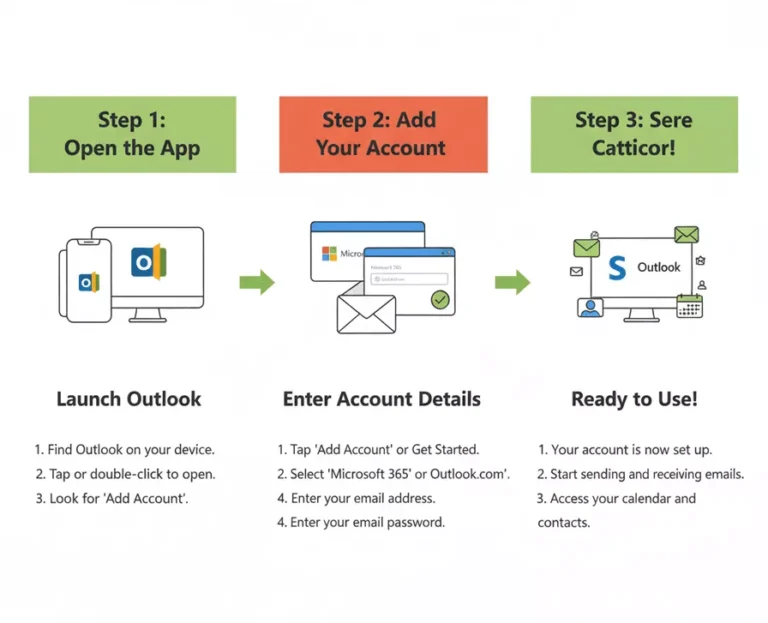
Before you start sending secure emails, you’ll want to check that your Outlook or M365 account is correctly configured. This will only take a few minutes:
- Use an account in, or sign up on, Microsoft Outlook.
- If you are on M365, make sure the encryption features have been turned on for your account by your administrator.
- Update Outlook to the latest version.
- If you use S/MIME, you will need to get your digital certificate from a certified organization like DigiCert or GlobalSign.
- Install that certificate, then connect it with your account.
After going through the above steps, you are ready to send your first encrypted email any moment.
How to Send a Secure Email in Outlook (Step-by-Step)
Now, to the meat of how to actually send an encrypted message in Outlook: it is a lot easier than many people think.
Step 1. Compose your e-mail by:
Open Outlook and create a new message. Type what you want to say, including your recipient’s email address.
Step 2: Go to Options
Click the Options tab located at the top of your email window.
Step 3: Select Encryption
Click Encrypt, then select the option that best applies to your situation for example:
- Encrypt-Only
- Do Not Forward
- Confidential
- Confidential
Step 4: Send It
Just click Send and you’re done. In Outlook, the encryption happens automatically. If they are also on Outlook or M365, they will see it as if it were any normal message. If they are not, they will get an issue allowing them to read securely in their web browser.
And that’s it: from now on, you can send secure e-mail using Outlook in a non-stressful, no-tech way.
Using Microsoft 365 (Web Version)
If you are one of those who prefer using Outlook online, here is how you do this using Microsoft Outlook and M365:
- Open the outlook.office.com website and log in.
- Click New Message.
- Click the Encrypt icon – the little lock.
- Click on “Encrypt” or “Encrypt & Prevent Forwarding.”
- Type your message, then click Send.
They will receive an email with a secured link. They only need to click Read the message, log in, or use a one-time code to view it safely.
Your message stays encrypted from sender to recipient-even if they don’t use Outlook you can also use disposable emails for unknown sites.
Using Outlook Desktop App
If you are using the desktop version of Outlook, you can also send encrypted e-mails directly from your computer. Here’s how:
- Click File > Options > Trust Center > Trust Center Settings.
- Click on Email Security.
- Select the check box for Encrypt contents and attachments for outgoing messages.
- Select your digital certificate if you are using either Microsoft Outlook or S/MIME.
- Type your message and send it.
That is it – your message will automatically be encrypted. Many businesses rely on this method because it’s easy and very effective.
How to Open a Secure Email in Outlook
Opening a secure email is also quite straightforward:
- If you are on Outlook or M365, then simply opening it Outlook will decrypt it for you.
- If you’re not using Gmail, you’ll get a message saying “You’ve received an encrypted email.” Click Read the message to open it in your browser.
- You might be asked to sign in or enter a one-time passcode.
- You will then see the e-mail in normal form, with all attachments included and safe.
Tips for Keeping Outlook Emails More Secure
Though encryption does much to help, there are a few extra habits that make your Outlook even safer:
- Always use strong passwords. You can make one easily with CreateRandomPassword.com.
- Two-step verification will provide added security.
- Avoid sending private emails using public Wi-Fi.
- Never click on unfamiliar attachments or links.
- Make sure Microsoft Outlook is kept up-to-date.
- Make use of digital signatures in identification.
- Keep regular backups of your emails.
Little things like these go a long way toward keeping your messages private and your account safe.
Final Considerations
Everybody should know how to send secure email from Outlook. Whether it be business information, invoices, or personal files, sending them encrypted provides peace of mind.
With Microsoft Outlook and M365, it is a piece of cake. Either use Microsoft Outlook or S/MIME, whichever suits you best. Once it is set up, just a few clicks will safely lock your email before sending.
So, next time you are about to send anything important, take that extra moment to send secure email. It’s worth it and also remove fake emails from the list. And remember to use a strong password from CreateRandomPassword in order to make your account even safer. A little effort now can save you a lot of trouble later.
Protect your privacy online with temporary, random email addresses. Use them for sign-ups, testing, or avoiding spam no data stored or tracked.




