
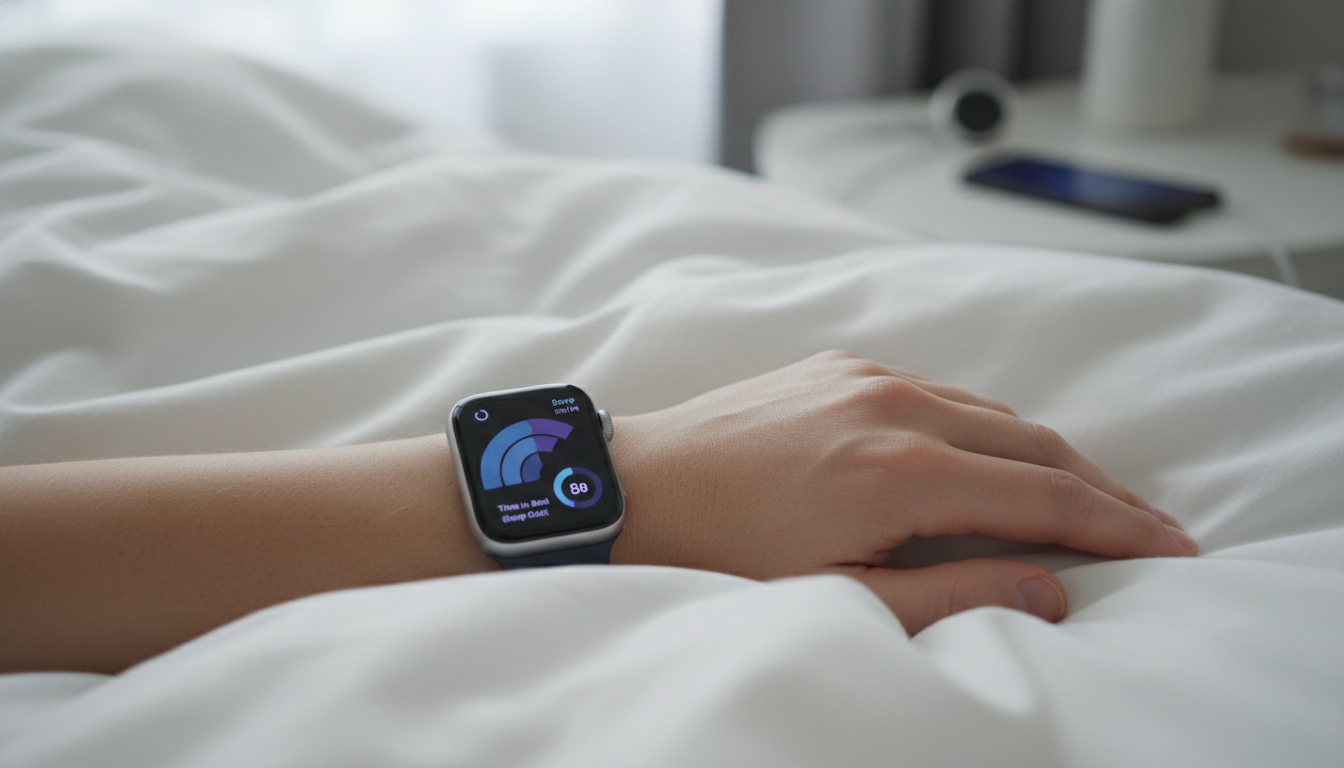
Understanding how to track sleep on Apple Watch is no longer just about seeing a simple graph of when you fell asleep and woke up. With the release of watchOS 11 and the latest hardware in the Apple Watch Series 10 and Ultra 2, Apple has transformed its wearable into a sophisticated medical-grade sleep laboratory. By leveraging the accelerometer, heart rate sensor, and blood oxygen (SpO2) monitor, your watch can now detect sleep stages (REM, Core, Deep), monitor respiratory rate, and even alert you to signs of sleep apnea. This comprehensive guide provides a deep dive into optimizing your Apple Watch for the most accurate sleep data possible, ensuring you move beyond basic tracking into actionable health insights.
The Evolution of Apple Watch Sleep Tracking: Why Accuracy Matters
For years, third-party apps dominated the sleep tracking space on watchOS. However, Apple’s native Sleep app has undergone a massive evolution. Unlike early versions that merely tracked movement, the modern Apple Watch uses machine learning models trained against polysomnography (the gold standard in clinical sleep studies). This means your device is looking for subtle patterns in heart rate variability (HRV) and wrist temperature to determine exactly which stage of sleep you are in.
Accurate sleep monitoring is critical because it serves as a leading indicator for overall cardiovascular health, cognitive function, and metabolic recovery. When you track sleep on an Apple Watch, you are collecting data on circadian rhythms and sleep hygiene that can help identify why you feel fatigued despite “sleeping” for eight hours. Whether you are using an older Series 6 or the latest Ultra, the software logic remains consistent, but the depth of data depends on your specific sensors.
Phase 1: Essential Configuration for Precise Data Collection
Before you can view your REM sleep or deep sleep metrics, you must configure the device to recognize when you are actually attempting to rest. The Apple Watch does not just “know” you are asleep; it relies on a Sleep Schedule to prime its sensors and reduce battery consumption during the night.
Setting Up Your Sleep Schedule
- Open the Health app on your paired iPhone.
- Tap the Browse tab and select Sleep.
- Scroll down to Full Schedule & Options and ensure Sleep Schedule is toggled on.
- Set your Sleep Goal (the amount of time you want to be asleep) and your Wind Down period.
The Wind Down feature is often overlooked but is vital for accuracy. It enables Sleep Focus, which reduces distractions by silencing notifications and dimming the display. This prevents accidental “wake” events from being recorded if you roll over and tap the screen in your sleep.
Enabling Advanced Health Metrics
To get the most out of the Vitals app introduced in watchOS 11, you must enable specific background measurements. Ensure that Wrist Temperature and Blood Oxygen measurements are active in the Privacy settings of the Watch app. These metrics are the difference between a simple “time in bed” log and a comprehensive health report.
Phase 2: Master the Sleep Stages (REM, Core, Deep)
Apple categorizes sleep into four distinct buckets. Understanding these is key to interpreting your morning data. The Apple Watch uses an actigraph (movement) and photoplethysmogram (PPG) (heart rate) to distinguish between these phases.
| Sleep Stage | What Happens to Your Body | Ideal Percentage |
|---|---|---|
| Awake | Brief moments of consciousness or significant movement. | 5-10% |
| REM (Rapid Eye Movement) | Dreaming, memory consolidation, and emotional processing. | 20-25% |
| Core (Light Sleep) | The transition phase; essential for metabolic regulation. | 45-55% |
| Deep (Slow Wave) | Physical repair, immune system boosting, and growth hormone release. | 10-20% |
If you notice your Deep Sleep is consistently below 10%, it may be time to look at external factors like room temperature, caffeine intake, or late-night blue light exposure. The Apple Watch provides the data, but the Health app provides the trends to help you make adjustments.
Phase 3: Leveraging the Vitals App for Wellness Trends
With the latest updates, Apple introduced the Vitals app. This is a game-changer for anyone serious about biohacking or athletic recovery. The Vitals app looks at your “typical” range for five key metrics while you sleep: Heart Rate, Respiratory Rate, Wrist Temperature, Blood Oxygen, and Sleep Duration.
If two or more of these metrics fall outside your baseline, the watch will send you a notification. This is often the first sign that you are getting sick, overtraining, or that your body is reacting poorly to alcohol. For example, a spike in wrist temperature combined with an elevated resting heart rate during sleep is a classic precursor to a viral infection.
Expert Perspective: The “Outlier” Strategy
Don’t obsess over a single night of bad sleep. Instead, look for outliers in the Vitals app. If your respiratory rate (the number of breaths per minute) is usually 14 but jumps to 18, your body is under stress. This proactive monitoring is what makes the Apple Watch more than just a fitness tracker; it’s a preventative health tool.
Optimizing Hardware for Accuracy: The Fit and the Charge
Even the best algorithms fail if the sensor cannot read your skin. To ensure accurate sleep monitoring, follow these hardware protocols:
- The “Two-Finger” Rule: Your watch should be snug but comfortable. It should be placed about two finger-widths above your wrist bone for the best PPG sensor contact.
- Clean the Sensor: Sweat and skin oils can cloud the green and red lights on the back of the watch. Wipe it with a lint-free cloth before bed.
- Battery Management: The Apple Watch needs at least 30% battery to track a full night of sleep. Use the Fast Charging puck (available on Series 7 and later) while you shower or get ready for bed to ensure you never miss a night of data.
Pro Tip: If you find the silicone Solo Loop uncomfortable for sleeping, switch to a Sport Loop (nylon). The breathable fabric prevents moisture buildup, which can interfere with heart rate readings during the night.
Addressing Sleep Apnea Notifications
One of the most significant updates in the Apple ecosystem is the Sleep Apnea Detection feature. Using the accelerometer to monitor Breathing Disturbances, the watch can identify patterns consistent with moderate to severe sleep apnea. If the watch detects consistent disturbances over a 30-day period, it will notify you to consult a physician.
To enable this, you must be 18 or older and not previously diagnosed with sleep apnea. This feature bridges the gap between consumer tech and clinical diagnostics, providing a PDF report you can take directly to your doctor.
Third-Party Apps vs. Native Tracking
While the native Apple Sleep app is excellent for most users, some power users prefer third-party alternatives. Apps like AutoSleep, Sleep Cycle, and Pillow offer different visualizations. However, since watchOS 9, these apps now typically pull their raw data from the Apple HealthKit API rather than using their own algorithms. This means the “accuracy” is largely the same, but the user interface and smart alarm features (waking you up in a light sleep phase) might be superior in third-party options.
For those who prioritize security and data integrity when using third-party health integrations, it is always wise to use unique credentials. You can create random password strings for your various health app accounts to ensure your sensitive biometric data remains protected from unauthorized access.
The Role of Environmental Factors in Sleep Tracking
Your Apple Watch doesn’t just track you; it can also help you control your environment. By integrating with HomeKit, your Sleep Schedule can trigger “Scenes.” For instance, when your Wind Down begins, your watch can signal your smart thermostat to drop the temperature to 68°F (20°C) and dim your bedroom lights.
Data consistently shows that a cooler room leads to increased Deep Sleep. By reviewing your Wrist Temperature data in the Health app, you can see if environmental changes are actually improving your physiological recovery.
Common Troubleshooting: Why Isn’t My Watch Tracking Sleep?
If you wake up and see “No Data” or just a bar for “Time in Bed” without stages, check these common culprits:
- Sleep Focus Not Active: If you don’t use a schedule, you must manually turn on Sleep Focus from the Control Center. If the watch isn’t in Sleep Focus, it won’t trigger the high-frequency sensor polling required for stage analysis.
- Wrist Detection Disabled: If Wrist Detection (in the Passcode settings) is off, the watch won’t record heart rate data in the background.
- Tattoos: Heavy ink on the wrist can block the light sensors. If you have a sleeve tattoo, try wearing the watch on the inside of your wrist or the other arm.
Data Privacy and Security with Apple Health
When you track your most intimate biological functions, privacy is paramount. Apple encrypts all Health data on-device if you have a passcode. If you use iCloud sync, the data is encrypted end-to-end. Not even Apple can read your sleep patterns. This commitment to privacy is why many users trust the Apple ecosystem over other wearable manufacturers.
As a trusted partner in digital security, Create Random Password recommends that users regularly audit their “Apps and Services” list within the Health app to ensure only trusted applications have “Read” or “Write” access to their sleep data.
Advanced Analytics: Interpreting Heart Rate Variability (HRV)
While the Sleep app shows you stages, the HRV metric (found in the Heart section of the Health app) is the ultimate indicator of autonomic nervous system balance. A high HRV during sleep suggests your body is in a “rest and digest” state (parasympathetic), while a low HRV relative to your baseline suggests stress or incomplete recovery.
Athletes often use the Apple Watch to decide their training intensity for the day. If your sleep tracking shows plenty of REM but your HRV is tanking, it’s a sign that while your mind is resting, your nervous system is still under load.
The Future of Sleep Tracking: AI and Predictive Health
We are entering an era of Generative AI and Large Language Models (LLMs) where your sleep data won’t just be a graph—it will be a conversation. Future versions of Siri, powered by Apple Intelligence, will likely be able to answer complex queries like, “How did my late-night workout affect my Deep Sleep last night?”
Currently, the Health Trends feature performs a version of this by highlighting shifts in your behavior over 6-month periods. It can identify if you are slowly becoming more sedentary or if your sleep duration is trending downward, allowing for “course correction” before chronic health issues arise.
Checklist for Perfect Apple Watch Sleep Tracking
- Hardware: Apple Watch Series 4 or later (Series 10/Ultra 2 recommended for Vitals and Apnea).
- Software: watchOS 11 and iOS 18 for the latest metric analysis.
- Schedule: Defined Sleep Schedule with at least 45 minutes of Wind Down.
- Sensors: Blood Oxygen and Wrist Temperature toggled ON.
- Placement: Snug fit, 2cm above the wrist bone, clean sensor glass.
- Review: Check the Vitals app every morning for “Outliers.”
Frequently Asked Questions
Does Apple Watch track naps?
With watchOS 11, the Apple Watch now automatically detects and records naps. Previously, you had to be in Sleep Focus for the watch to record data, but the latest algorithms can identify sleep states even outside of your scheduled sleep window, as long as you are still for a sufficient period.
How accurate is the Apple Watch compared to a real sleep lab?
Independent studies have shown the Apple Watch to be among the most accurate consumer wearables, particularly for detecting “Wake” and “REM” states. While no wrist-based device can match the accuracy of EEG (brain wave) monitoring used in labs, the Apple Watch is highly reliable for tracking long-term trends and identifying significant deviations in health.
Can I track sleep without my iPhone nearby?
Yes. The Apple Watch stores all sleep data locally on its internal storage. Once you are back in range of your iPhone, the data will sync to the Health app via Bluetooth or Wi-Fi. You do not need your phone in the bedroom to track sleep.
Why does my watch show “Core Sleep” instead of “Light Sleep”?
Apple uses the term “Core” to describe the stages of sleep that aren’t REM or Deep. This primarily includes Stage 2 NREM sleep. It is the “standard” sleep where your body does most of its metabolic maintenance.
Final Thoughts on Sleep Mastery
Mastering how to track sleep on Apple Watch is a journey of incremental improvements. By moving beyond the surface-level “Time Asleep” metric and diving into Vitals, Respiratory Rate, and HRV, you turn your watch into a powerful diagnostic tool. The key is consistency. Wear your watch every night, keep it charged, and pay attention to the trends rather than the daily fluctuations. With the right configuration, your Apple Watch becomes the ultimate partner in achieving peak physical and mental performance through better rest.
For more guides on digital wellness and securing your online health accounts, visit our partner Create Random Password for the latest in cybersecurity best practices. Your health data is your most valuable asset—track it accurately and protect it fiercely.




