
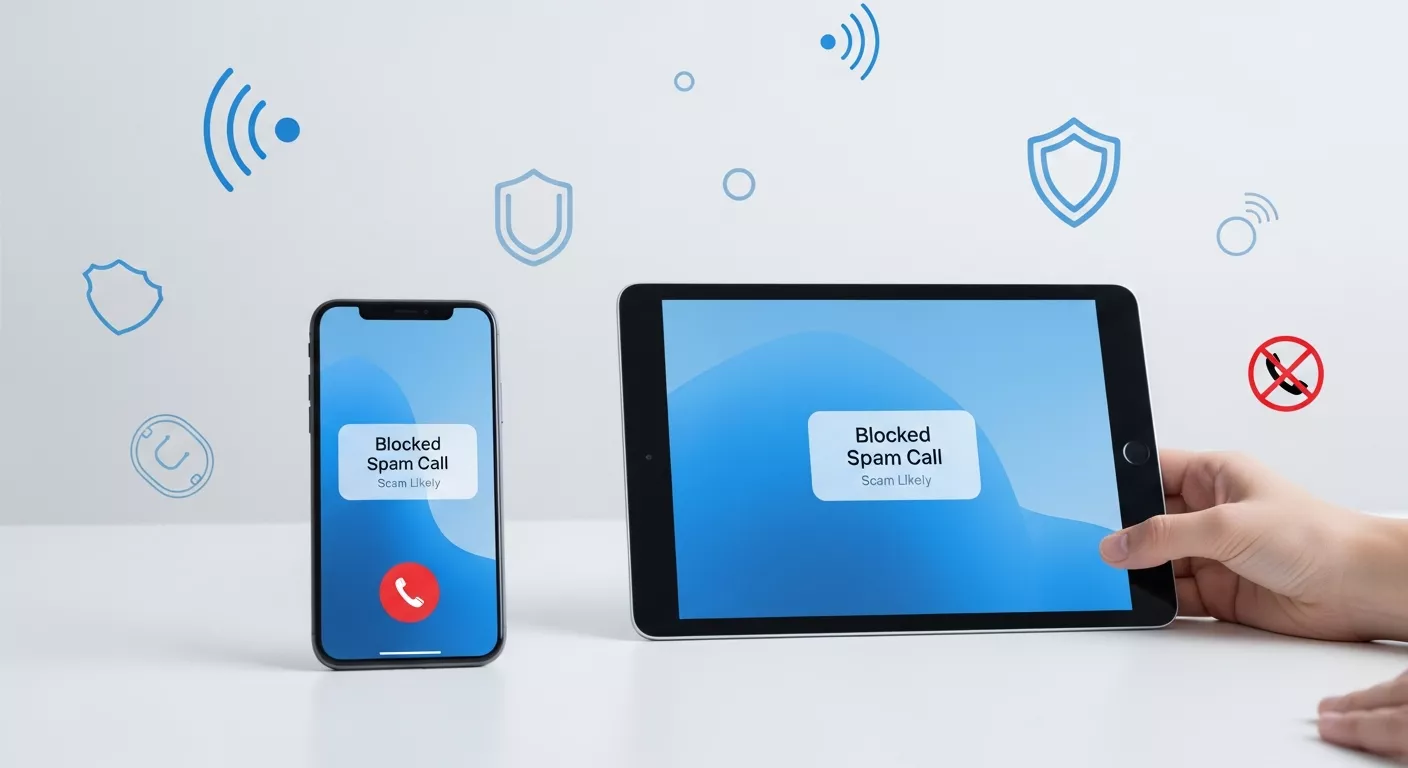
Getting incessant spam or “scam likely” calls on your iPhone can be both a nagging disturbance and a real danger. Millions of users ask themselves every day, “Why do I get so many spam calls?” From robocalls claiming to be calling from banks to calls that give fake delivery updates, these scams are on the rise. Mastering the blocking of scam calls, and robocalls will eventually help you protect your privacy, save time and stay away from fraud.
However, the users of iPads and iPhones can easily remain secure by incorporating built-in functionality, and using specific apps or even carrier settings. This is a complete how-to guide on how to block possible scam calls step by step, prevent unknown numbers from reaching you, and keep your digital world tranquil.
Why Blocking Spam Calls Matters (Consumer Advice)
Spam calls are not just a nuisance but rather they can quite easily cause scams, identity theft or phishing. Criminals using the internet have leveraged the technological advances in robocalls to trap the unwary and obtain their confidential data.
Rise of scam likely calls
The expression “scam likely” pops up on your display whenever the carrier identifies the number as suspicious. Nevertheless, not all telecoms give such calls the right tags, which is the reason why you still might get hazardous spam calls.
Risks of not blocking spam calls
The implications of unwanted spam calls are undesirable-concerning fraudulent schemes and financial losses, but incessant throwing to one sorry human’s head. This should underpin the need for learning to restrict “spam likely” calls.
iOS Built-in Features for Blocking Spam Calls
Apple has equipped users of iPhone and iPad with some easy and clear methods for blocking spam calls.
Make use of Silence Unknown Callers
Initially, you ought to go through the procedure of Settings → Phone → Silence Unknown Callers and then activate the option. By the use of this function, calls from numbers that are neither in your contacts, nor have ever been in your email or text messages will be quietly dropped automatically.
How to Block Unwanted Call Number
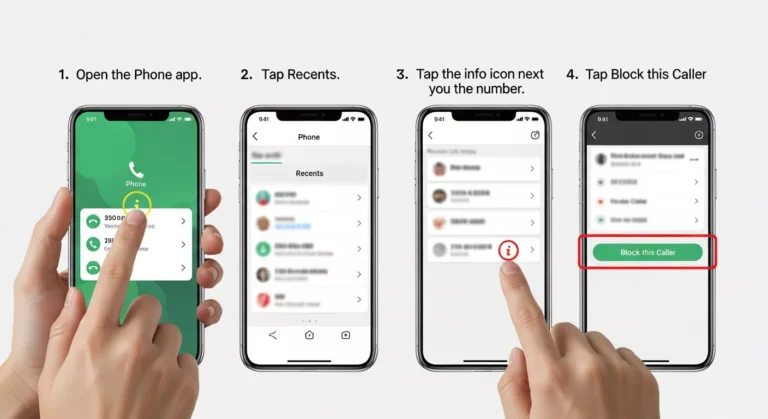
If you want to block unwanted call numbers follow the step by step process.
- Open the Phone app.
- Tap Recents.
- Tap the info icon next to the number.
- Tap Block this Caller.
This is a quick fix for the persistent spam numbers.
Enable Caller ID & Spam Protection
Some carriers provide a “Spam & Call Protection” feature. Go to Settings > Phone > Call Blocking & Identification, then activate the toggle for your carrier’s filter app.
Use Focus or Do Not Disturb mode
Set Focus → Do Not Disturb will allow calls only from your contacts. This reduces interruptions from random numbers.
How to Use Third-Party Apps to Filtering Spam Call
While Apple’s system does a fine job, dedicated call-filtering apps offer even more protection against scam likely calls.
Why use third-party blocking apps?
Potential apps that do similar things include Call Blacklist and Caller ID.
How to Install and Activate
- Download your app of choice from the App Store.
- Open the Settings app → Phone → Call Blocking & Identification.
- Enable the app you installed.
Not only is your phone now using Apple’s filtering but it is also using our database of fake-caller blocking apps so that it can protect you from scam and other spam calls.
Choosing the right app
Always check user reviews and privacy policies. The best tools will be lightweight, regularly updated, and not sell your data.
How Carrier & Network Services Help
Most U.S. carriers now include built-in spam protection to help users stop robocalls.
AT&T Call Protect
Automatically identifies and blocks suspicious numbers labelled as ‘Scam Likely’. You can also report the numbers yourself.
T-Mobile Scam Shield
Free scam detection and the ability to view caller info before answering.
Verizon Call Filter
Blocks high-risk spam calls and gives you optional premium analytics for caller reputation.
To enable, go into your carrier’s app or Settings → Phone → Call Blocking & Identification, then turn their service on.
Smart Habits to Reduce Future Spam Calls
Nevertheless, con artists might still find methods to circumvent blocking tools. A change of habits could ensure that robocalls are finally eliminated.
- Always keep your number confidential.
- Social media, public profiles, and websites should not display your number.
- Do not interact with spam phone calls at all.
- If you pick up accidentally, don’t press any numbers or respond. It confirms your number is active.
- Use secondary numbers for registrations.
- Create a number specifically for online forms, subscriptions, or temporary use.
Report spam numbers
You can report robocalls to the FTC’s Do Not Call Registry or through your carrier’s app.
Keep your software updated
Keep your iOS up to date, as Apple often enhances its call-filtering features with every update.
Follow the Step If Spam Calls Still Get Through
Sometimes, spam calls slip through filters. Here’s what to check.
Check your settings
Make sure “Silence Unknown Callers” and “Call Blocking & Identification” are turned on.
Reinstall your call blocker app
If it is not filtering correctly, uninstall and reinstall to refresh the app’s permissions.
Update iOS and apps
The older versions of the software might be unable to run the newest spam-filtering algorithms like fix 493xds5.0 in software error.
Get in touch with your network provider
In the event that scam likely calls are still coming, your network provider might have to reset the call-filter service.
Final Considerations
Blocked and scam calls can be very annoying but at the same time they can endanger your privacy. Therefore, the ability to mute the scam likely calls on your iPhone or iPad means that you protect both your data and your peace of mind, not necessary to hide phone number on iPhone. The most effective method is to combine Apple’s built-in tools, carrier features, and reliable third-party apps.
Be constantly watchful, have your system upgraded regularly, and do not respond to suspicious callers. By doing so, you will not have to ask, “Why do I receive so many spam calls?” anymore, and you will have a phone experience that is safe and filled with peace.
Frequently Asked Questions
Your number may have been shared through data leaks, online forms, or auto-dialer lists.
Use a mix of Apple’s Silence Unknown Callers, a carrier spam filter, and a trusted blocking app.
Enable built-in call blocking, use third-party apps, and report suspicious calls to your carrier.
Yes, if linked to your Apple ID and FaceTime. You can block numbers in FaceTime settings.
Yes. Once blocked, that number can’t call, text, or FaceTime you.
Protect your online accounts with strong, random passwords. It’s 100% free, and we never save or share your data.




