
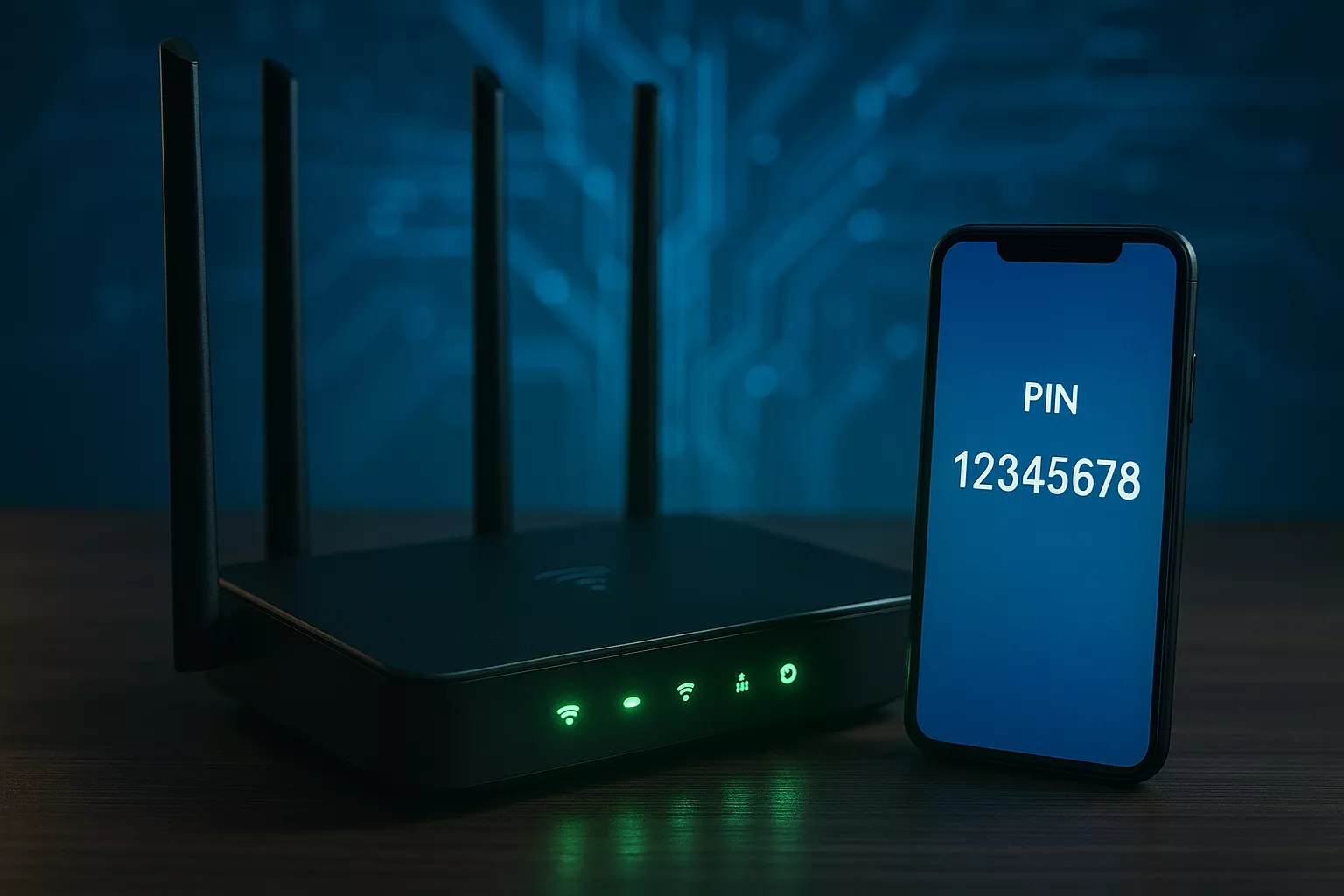
The challenge would be obtaining your router’s 8 digit PIN in case it is requested by your computer, phone, or printer instead of the Wi-Fi password. Primarily, this 8-digit number, known as WPS PIN (Wi-Fi Protected Setup), permits the safe linking of devices to your wireless network without having to enter the full password. It is mostly applied in printer, smart TVs, and other IoT-device connections.
In case you ever got that prompt asking you to “Enter the WPS PIN for your router” and had no clue where to begin looking, relax! This guide will not only tell you what it is, where to find it, and how to use it securely but also will provide you with the knowledge of resetting or changing your router’s password, connecting HP printers using the PIN, and securing your network from unauthorized access.
Where to Find 8 Digit PIN from Router Label
Check router sticker
To find your 8 digit PIN quickly, check the back or bottom label on the router. Most routers have a sticker which usually showcases:
- SSID (Network Name)
- Default Wi-Fi Password or Key
- WPS PIN(8 digits)
- IP Address (e.g., 158.63.258.200)
- Default Username and Password for admin panel
If your router supports WPS, you will find the code printed as “WPS PIN: XXXXXXXX.” Note that this is different from your Wi-Fi password; it’s specifically for connecting devices through WPS mode.
Check packaging or manual
If you don’t see it on the router’s label, refer to the original packaging or the user manual that came with it. Some manufacturers, like TP-Link, D-Link, and Netgear, include the WPS PIN on the printed installation instructions or quick start cards.
Manufacturer label locations
Each brand places its label differently:
- TP-Link / Netgear – Usually on the underside of the device
- ASUS / Linksys – Often on the back panel near the Ethernet ports
- Huawei / ZTE – Inside the Battery Cover (Portable Routers)
PIN is Missing or Doesn't Match
If your router’s sticker does not show the PIN or if the requested PIN does not match, don’t worry. Some routers allow for generating a new WPS PIN from the admin interface and we will cover this in the next section.
How to Setup My 8 Digit Router Password
WPS PIN vs Wi-Fi password
Prior to altering, comprehend the distinction:
- WPS PIN – A provisional 8 digit number which is used for connecting devices, it lasts for a short time.
- Wi-Fi password – The same password which allows connecting phones, laptops, etc. to the network.
- Modification of one does not have any influence on the other.
- Login to router panel
To set up or find your PIN:
- Connect your device to the router.
- Open your browser and type 192.168.0.1 or 192.168.1.1.
- Please enter your admin username and password. You can find this information on the label on the router.
- Once you have logged in, click on Wireless > WPS Settings or Advanced > WPS.
Here, you’ll find options like:
- Enable/Disable WPS
- View existing WPS PIN
- Generate New PIN (usually a button)
Change Wi-Fi password
If you want to update your Wi-Fi password instead:
- On the same panel, click Wireless Security or Wi-Fi Settings.
- Create a new strong password using letters, numbers, and symbols.
- Save settings your router may restart.
- Reconnect your devices using the new password.
- Save and test
After updating, test your changes:
- Try connecting a phone or printer with the new WPS PIN.
- If the connection fails, reset the WPS feature and generate a new PIN.
How Long to Crack 8 Digit Password
An 8-digit numeric PIN has 100 million possible combinations (00000000 to 99999999). While that seems large, it’s far weaker than alphanumeric passwords.
WPS vulnerability
The WPS system was originally created for convenience but that same convenience made it a target. Attackers can exploit weak routers using brute-force methods to guess the PIN.
Protection tips
- Disable WPS when not in use.
- Use WPA2 or WPA3 encryption for better security.
- Change the default login credentials on your router.
- Create a 12–16 character Wi-Fi password using symbols and upper/lowercase letters.
Remember, WPS PIN is only needed for device setup. Once connected, turn it off for maximum safety using 4-digit PIN or 8 digit.
Where to Find WPS PIN on HP Printer
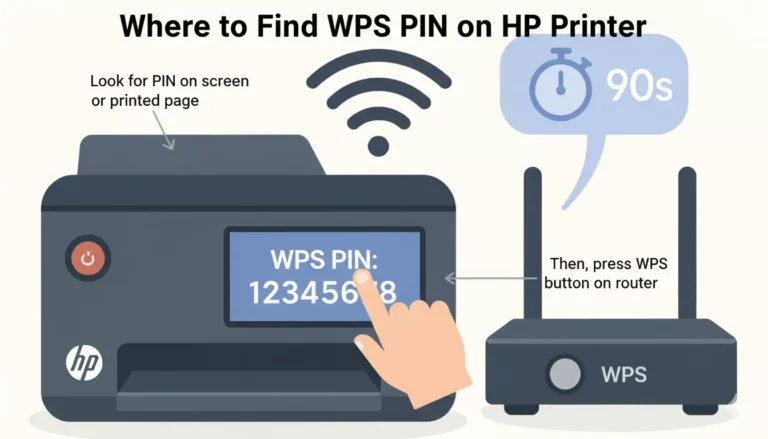
When a message, such as “Enter the WPS PIN for your router,” is displayed on your HP printer, it indicates that the printer is attempting to connect wirelessly.
Printer display
For touch-screen printers such as HP DeskJet, OfficeJet, or ENVY series:
- Tap the Wireless icon.
- Go to Settings > Wi-Fi Protected Setup (WPS)
- Select PIN.
- The printer will display an 8 digit PIN on the screen.
Print configuration page
For non-touchscreen printers:
- Press and hold the Wireless + Information buttons together.
- A Network Configuration Page prints out look for “WPS PIN.”
HP Smart App
You can also use the HP Smart App:
- Open the app on your computer or mobile.
- Select your printer.
- Go to Network Settings > WPS Setup.
- The 8 digit PIN appears for entry.
Physical sticker
Some printers (mainly HP LaserJet and older DeskJets) have a WPS label with the PIN printed on the back or inside the cartridge door.
How to Connect HP Printer to Wi-Fi Using WPS PIN
Enable wireless mode
Make sure your printer is powered on and the wireless light is blinking.
Get the WPS PIN
Follow the steps above to display or print the 8-digit PIN.
- Enter the PIN on router or computer
- In less than two minutes, open your router’s WPS configuration page or your computer’s Wi-Fi setup window.
- When prompted, enter the PIN.
- Wait for the printer and router to establish a connection (light will stop blinking).
Use Push Button alternative
If it doesn’t work with the PIN method, press and hold the WPS button on your router and the printer’s Wireless button at the same time; this will connect them automatically.
Fix connection issues
If your printer is unable to connect:
- Make sure WPS is enabled on the router.
- Regenerate a new PIN each PIN only lasts for a few minutes.
- Restart the printer and router.
Troubleshooting Common Issues
WPS PIN expired
WPS PINs are time-limited (usually 1–2 minutes). Generate a new one if your connection fails.
Router not accepting PIN
Update your router firmware or disable/re-enable WPS mode. Some ISPs lock WPS settings.
Printer not showing PIN
Restart the printer or reset network settings. For older printers, use USB setup first.
Security warning
While WPS makes setup easy, it’s safer to disable it afterward. Use manual connection for better privacy.
Security & Best Practices for WPS 8 Digit Password
When to use WPS
Only use WPS when initially connecting trusted devices like printers or smart TVs.
Disable WPS after setup
Once your device is connected, go to your router panel and turn off the WPS option.
Use strong encryption
Always choose WPA2 or WPA3 over outdated WEP encryption.
Change default login
Hackers often exploit default admin credentials. Always personalize your router login and Wi-Fi names.
Update firmware
Router updates patch security issues. Check your manufacturer’s website regularly.
Quick Reference:
- Router label → Check bottom for “WPS PIN”
- Router panel → Wireless > WPS Settings > Generate PIN
- Printer → Wireless Settings > WPS PIN Method
- Non-touch printer → Print Network Configuration Page
- Connection time → Use PIN within 2 minutes
Final Considerations
The process of locating the 8-digit PIN of your router can be no longer confusing if only you know its location and purpose. This PIN, which is usually present on the label of the router or in its settings, is very important for the secure Wi-Fi connection created through WPS (Wireless Protected Setup).
Nobody knows if you are connecting a new gadget, installing your HP printer, or asking for a Wi-Fi PIN – this process is always understanding and hence saves time and frustration. You should always keep your PIN and router login details confidential so that your network remains secure from unauthorized access. When you have finished the actions mentioned above, finding your 8 digit router PIN, securely connecting devices, and controlling your home network will be very easy and will build confidence.
Frequently Asked Questions
It’s a WPS PIN used to connect devices to Wi-Fi without typing the full password.
Look under your router, in its box, or inside the admin panel under WPS settings.
No, the WPS PIN is temporary and only used for setup.
Yes, log into your router and click “Generate New PIN.”
Generate the PIN on the printer, enter it in the router’s WPS settings, and wait for connection.
Generate custom 4–20 digit PINs for gaming accounts, app testing, or secure logins. It’s fast, free, and completely private no data saved or shared.




