
What Is a WPA2 Password?
A WPA2 password is essentially the shield that protects your Wi-Fi network from unauthorized access. This is the code you have to bring in order to be part of a wireless network that is secured in your house, office, or even public places. WPA2 stands for Wi-Fi Protected Access 2; it is a security protocol to make sure your data is properly encrypted when it is transmitted by Wi-Fi between your devices and the router and vice versa. Hackers cannot intercept your data like passwords, emails, or payment information.
Although WPA2 is one of the most secure wireless security methods, it has some disadvantages. Nevertheless, it is still deemed an essential component of Wi-Fi security. Knowing what is a WPA2 password and how to manage it is very important when setting up a new router or troubleshooting your wireless connection, making your Wi-Fi safe and private.
What are the Key Differences WPA, WPA2, and WPA3?
Wi-Fi security has been improving steadily from the very beginning and now there are different forms of encryption that you may pick and even that are automatically carved out for you. We will reference the differences with the types of protections offered with WPA, WPA2, and WPA3 and the impact for either home or office networks below, so let’s get into the details.
WPA (Wi-Fi Protected Access)
WPA was the first significant upgrade after WEP (which is very insecure) and was released in 2003. WPA utilized TKIP (Temporal Key Integrity Protocol) as the main scheme to provide slightly better data protection, but like WEP, WPA had weaknesses that could be exploited using tools available at that time.
WPA2 (Wi-Fi Protected Access 2)
In 2004, WPA2 took over WPA and it was the standard at that time. It was a transition from TKIP to AES (Advanced Encryption Standard) which is a method of encrypting that is very tough and is even used by governments and banks. This aspect makes WPA2 giving more security and at the same time being more trustworthy for home networks.
WPA3 (Wi-Fi Protected Access 3)
WPA3 is the latest version, released in 2018, offering stronger encryption and enhanced resistance to online password attacks avoid common password mistakes. Additionally, it allows for personal data encryption on all devices connected to the same network.
However, since not all older devices support WPA3, WPA2 is still the most used and most supported standard today.
Why Your WPA2 Password Matters (WPA2 Security)
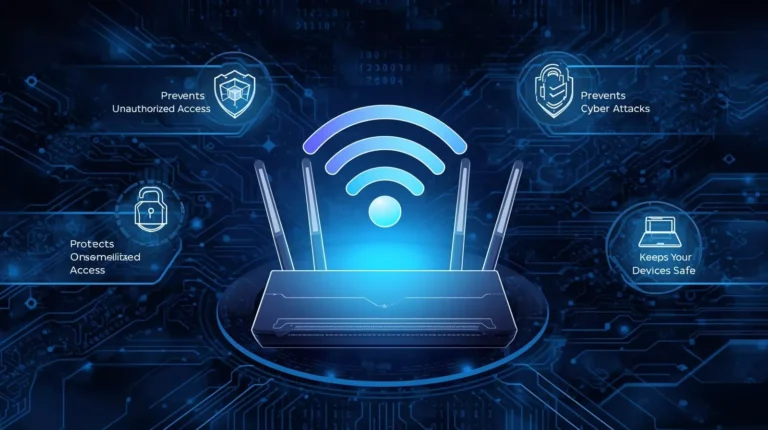
Your WPA2 password is not only a means to connect to Wi-Fi; it is also your primary defense line against hackers. Here is the list of advantages:
1. Prevents Unauthorized Access
By using a public WPA2 password, anyone in the vicinity can access your network that might lead to bandwidth wastage and spying on your internet activities.
2. Protects Personal Data
A difficult WPA2 passphrase guarantees that your data such as logins, files, and messages remain encrypted and inaccessible to outside people.
3. Prevents Cyber Attacks
Internet criminals usually focus on the networks with least security in order to implant malware or grab passwords. WPA2 encryption makes that scenario very unlikely.
4. Keeps Your Devices Safe
The protection offered by the Wi-Fi WPA2 that hinders unauthorized access and control is enjoyed by every connected device, from smart TVs to baby monitors.
To enhance your WPA2 security, it is important to have a password that is long, unique, and difficult to guess. Ideally, use a mix of upper and lower case letters, numbers, and symbols for maximum security.
How to Find and Configure Your WPA2 Password
A situation might arise when you will have to find or change your Wi-Fi password for various reasons and use 8 digit pin for security: for sharing it with your family or guests, for reconnecting a device, or for security reasons. Whichever the reason is, we will guide you through the simple process of finding your WPA2 password and changing it.
1. Find Your WPA2 Password on the Router Label
Many routers will list the default WPA2 password (in some cases referred to as “Network Key” or “Wi-Fi Password”) on the back/bottom of the router. If you have not changed the password from the factory settings, that is your password!
2. Find WPA2 Password on a Windows or Mac Device
- Windows: Navigate to Network & Internet Settings → Network and Sharing Center → Wireless Properties → Security tab.
- Mac: Find and launch Keychain Access → Wi-Fi Network → Show Password (admin access required).
3. Set/Change the WPA2 Password via Router Settings
- First thing, ensure that you are connected to your Wi-Fi network before changing the password.
- Fire up your preferred web browser and type in your router’s IP address (the most common addresses are 192.168.0.1 or 192.168.1.1).
- Login with the admin credentials (if you haven’t changed the admin credentials you might try “admin” or leave the password blank).
- Navigate to Wireless Settings → Security Mode (again you want WPA2-PSK) → Passphrase or Pre-Shared Key (use “Passphrase”).
- Enter your new password.
Make sure to save your settings and reconnect your devices!
How to Change Your WPA2 Password (and When You Should)
It is a wise security practice to change your WPA2 password at regular intervals. Here’s when and how to do that.
When to Change WPA2 Password
- You let it out to guests or neighbors.
- You think that someone is taking advantage of your Wi-Fi without permission.
- You have recently replaced your router or network.
- You have not changed it for several months.
- Steps to Change WPA2 Password
Access your router’s administration panel as you did before.
- Go to Wireless Security or Wi-Fi Settings.
- Check under “Security Type” that WPA2-PSK (AES) is chosen.
- Type your new WPA2 passphrase.
- Make changes and re-connect all the devices with the updated credentials.
Tips for Creating a Strong WPA2 Password
- At least 12–16 characters long.
- Mix letters, numbers, and symbols together.
- Do not use words from the dictionary or personal information.
- For the highest level of security, change it every 6–12 months.
WPA2 vs WPA3: Should You Upgrade?
While WPA2 remains secure for most users, WPA3 introduces several key improvements worth noting.
| Feature | WPA2 | WPA3 |
|---|---|---|
| Encryption Method | AES (strong) | SAE (stronger and more modern) |
| Protection Against Password Guessing | Moderate | High (resists brute-force attacks) |
| Individual Data Encryption | No | Yes |
| Device Compatibility | Universal | Newer devices only |
| Ease of Setup | Simple | Enhanced security setup |
If both your router and devices have WPA3 support, then upgrading is a good choice because it will give you stronger privacy and better security for smart home systems. Still, if you are on WPA2 with a robust password, your network is quite safe.
Best Practices for WPA2 Security
Using WPA2 encryption does not guarantee your Wi-Fi network’s security and it can still get hacked if not maintained properly. Here are a few tips to help you enhance your security:
- Create a strong password and don’t let it be your only password for your Wi-Fi network.
- Turn off WPS (Wi-Fi Protected Setup) so that a hacker won’t have a way to connect to your network easily.
- Update your router firmware from time to time to receive the security patches.
- Don’t forget to turn on the firewall that is provided by the router.
- Keep track of the devices that are connected to your network and remove any unfamiliar ones.
- Creating a guest network is a good way to limit guest access to your Wi-Fi.
How Can Your Wi-Fi Network Proofing Future Technology
The security standards will change as technologies advance, and so will the vulnerabilities. Use private browsing mode for testing. Even in the event of new threats, WPA2 still being a good security layer for Wi-Fi, and it is definitely a good idea to upgrade to a WPA3 compatible router, but using encryption key changes, hardware upgrades, and guest access will keep your Wi-Fi network secure and make your network experience very productive for years, even if WPA2 is your security layer.
Final Considerations
Getting acquainted with your WPA2 password is probably the greatest single step you can take to fortify your Wi-Fi account security; however, keep in mind that your Wi-Fi password is similar to a security guard for your personal data, giving network connectivity to legitimate users and blocking unauthorized ones, and providing you with a pleasant network experience.
To find out how to locate, set, and change your WPA2 password, plus get to know the differences between WPA2 and WPA3, is nothing but an excellent strategy for securing your wireless networks privacy and safety.
Frequently Asked Questions
It’s the passphrase that protects your Wi-Fi network using WPA2 encryption to prevent unauthorized access.
Go to your Wi-Fi settings and check the “Security Type” if it says “WPA2-PSK” or “WPA2-AES,” you’re using WPA2.
Yes, WPA3 is more advanced, but WPA2 is still secure and widely supported.
Yes, but using WPA2-Enterprise or WPA3 for business offers enhanced authentication and security.
Not yet older devices may only support WPA2, but most new routers can handle both.
Protect your online accounts with strong, random passwords. It’s 100% free, and we never save or share your data.




