
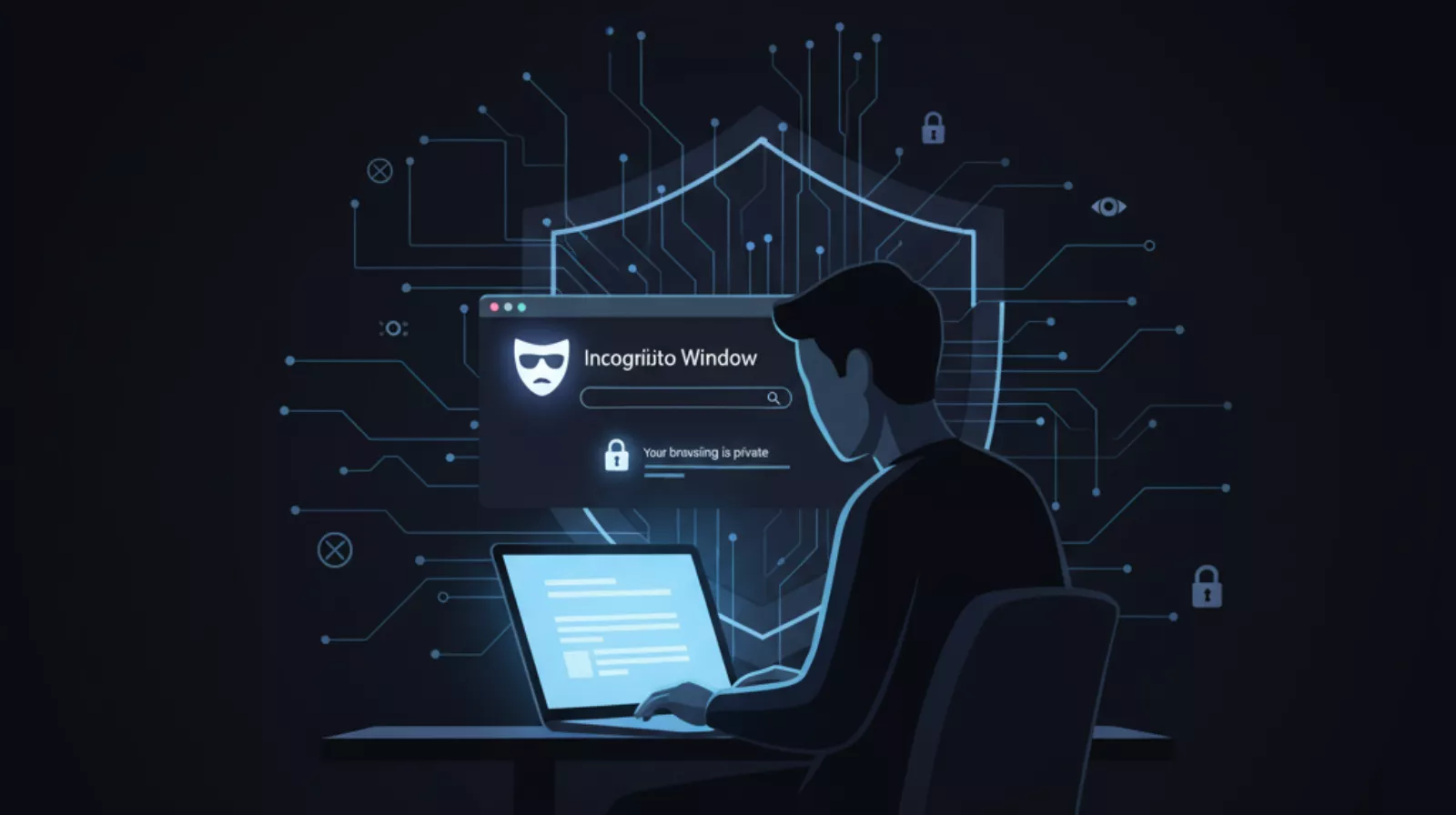
Incognito Mode and Private Browsing remain some of the popular tools for hiding one’s online activities, but they will not make the user completely anonymous or hidden. When in use online, Incognito Mode doesn’t save the user’s history, cookies, or form data in their browser. Incognito Mode can become helpful as a feature if a user is searching for something not to be saved in their normal browsing history and they are on a shared device. The user may still be tracked by websites, the internet provider, or even the user’s employer.
Private browsing alone will not provide online privacy; however, it will be a good start towards masking and enhancing online privacy when done with the right set of safe tools, such as through a secure browser, VPN, and privacy-sensitive search engines.
While the right tools grant protection online, it is necessary to learn how to act within these modes securely, to be an informed consumer of online privacy and protection for data security, and responsible and accountable for your digital identity. This tutorial will outline how to manage, use, and disable private browsing, so that the user can safely move in their online experience. These browser features provide local browsing ease, not necessarily anonymous browsing.
What is Incognito Mode or Private Browsing?
Private browsing, also called Incognito Mode, is a privacy feature that all major browsers have. Its main function is to prevent your browsing history, cookies, and site data from being stored on your device once you close the window. In other words, it’s like creating a temporary browsing session that deletes most traces of what you did when you’re done.
When you open a private window, your browser initiates a new session that doesn’t remember where you’ve gone and what you’ve done. Anything you viewed, any queries you typed in, or any forms you submitted will not show up later on in your history. Even cookies-the little data files that identify you to websites-get deleted automatically when you close the private session. That means that any online trackers or someone else using your device after you won’t be able to see your recent activity.
How Private Browsing Works?
Think of an incognito mode and private browsing as a temporary workspace. The very instant you turn it on, your browser segregates all your activities in that session. When you close the tab or window, everything gets deleted, just like you wiped a whiteboard clean.
However, it should be underlined that by no means does it make you undetectable on the Internet. Your ISP, employer, or the websites you visited can still identify your IP address and trace your activity. Actually, what Incognito Mode does is help your local device not keep the information but not to render you completely unidentifiable.
The Difference Between Incognito Mode and Normal Browsing
While in Incognito or Private Browsing, this information does not get saved on your browser. Once you are finished with the session, all this information will be lost. That is helpful if you use a shared computer and/or cruise with public Wi-Fi, as your activity would be isolated from other users on that device. In Incognito or Private Browsing, information is not stored by the browser. Once it closes the session, all information disappears. This is very beneficial in those situations when one shares a computer or uses public Wi-Fi because it means other users on that device will not see one’s activity.
Simply put:
- Normal mode: Saves history, cookies, and logins.
- Private mode: Doesn’t save them and resets once closed.
What Different Browsers Call It
Private browsing has a different name with each browser, but the concept remains essentially the same:
- Google Chrome: Incognito Mode
- Safari (Apple): Private Browsing
- Mozilla Firefox: Private Window
- Microsoft Edge: InPrivate Mode
- Opera: Private Window
- Brave Browser: Private Window with Tor (for extra anonymity)
No matter what it’s called, the goal remains the same to give users a cleaner, short-term browsing experience that doesn’t leave behind a trail of digital footprints.
What Really Happens When You Use Private Browsing
Private browsing grants you a certain level of privacy on the internet, but it doesn’t render you completely invisible. Let’s analyze what it conceals and what it does not.
- Information that remains private
- Your browsing history is not saved to your device.
- Cookies and temporary site data are cleared when the tab is closed.
- Autofill data and search suggestions are not stored.
What is Still Visible to Others
- Websites may still know your IP address.
- Internet service providers can still detect the websites you visit.
- Your employer or your school’s network may still be monitoring your activity.
- The reality is that incognito mode does not make you truly anonymous.
Many users think the incognito mode and private browsing will hide their anonymity, but the truth is that it only hides what you are doing locally, meaning that anyone who uses the same device will not be able to see your browsing history. Your online identity, IP address, and activities can still be traced by websites or network administrators.
How to Turn On Private Browsing in Any Browser
No matter which browser you use, turning on private browsing is easy:
- Enable Incognito Mode in Google Chrome
- Open Chrome.
- Click the three dots in the top-right corner.
- Choose “New Incognito Window.”
- A black-colored window opens, indicating that you have gone private.
Use Private Mode in Safari and Firefox
- Safari (on Mac/iPhone): Click File > New Private Window or, if on an iPhone, turn it on through the Tabs menu.
- Firefox: Click the menu button and then click New Private Window.
How to Enable InPrivate Mode in Microsoft Edge
- Click the three dots on the upper-right.
- Choose “New InPrivate Window.”
- You’ll see an indicator that shows your browsing session is private.
Quick steps for mobile browsers
Typically, most browsers on Android and iPhone include a feature that allows users to open a “Private Tab” directly from the tab views. Just touch the mask or the “Incognito” symbol to switch immediately.
How to Turn Off Private Browsing
If you want to return to normal browsing, it is similarly easy:
- The proper closing of private tabs/windows.
- To exit your private session, you close all private windows or tabs. In doing so, your browser eliminates all temporary data created during that session.
How to Switching Back to Normal Browsing Mode
Open a new regular tab (no dark theme, no mask icon). You are back to a standard browsing for which history and cookies are saved.
What happens to your browsing data when you exit?
Once you leave Incognito Mode, it automatically deletes every website, cookie, and temporary cache from that private session. However, the downloads you have made and the bookmarks remain.
When Would you Use Private or Incognito Mode?
Private browsing isn’t just about keeping what you do private; rather, it is a pretty practical tool for some situations.
Safe Browsing on Shared Devices
For use on another person’s laptop or when using the library or home computer, Private mode prevents your login details from being saved.
Anonymous Price Comparison
Some websites increase their prices depending on your previous searches. Private browsing avoids that by resetting cookies each time you visit.
Log In to Multiple Accounts
If you have multiple social media or email accounts, Private Windows allows you to log into different accounts all at once.
View Sensitive Information Privately
Whether it is online banking, job research, or health information, private mode helps avoid leaving local traces of one’s session.
Private Browsing vs VPN: What's the Real Difference?
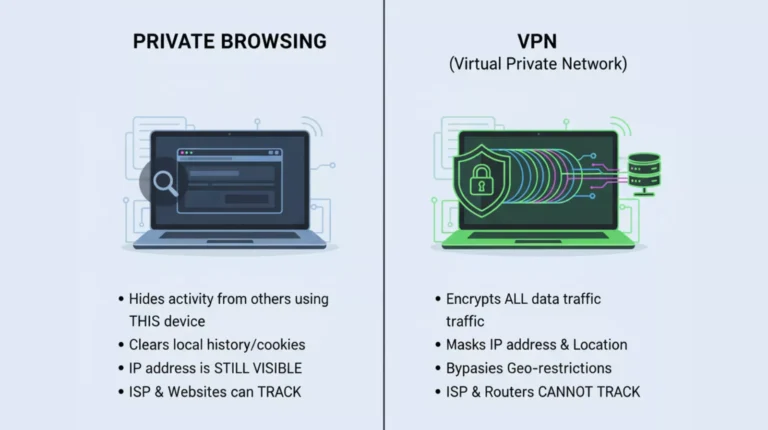
The principle of any good VPN is to encrypt all your internet use and mask your IP address.
That said, private mode only prevents local data storage; it doesn’t encrypt or route your traffic through secure servers.
Private Browsing (Incognito Mode)
This mode doesn’t preserve any of your online activities like history, cookies, or saved forms on the device you used.
- It is a great option for local, temporary privacy (example: using others’ computers).
- However, your ISP, your employer, or the website might still be able to monitor your browsing.
- It neither hides your IP address nor encrypts your internet traffic.
- Good for cookies’ purging or safe sign-ins to several accounts at once.
VPN (Virtual Private Network)
- Your internet connection is being encrypted, thus making your data indiscernible to hackers and trackers.
- Your actual IP address is concealed as your traffic is transferred via a faraway server.
- You get privacy from ISPs, advertisers, and public Wi-Fi watchers.
- You can use the service to visit sites that are geographically blocked, as well as the content of streaming services.
- Perfect if you are looking for total online invisibility and safe browsing wherever you are.
Common Myths About Private Browsing (Busted!)
There are many misconceptions about what private browsing actually does.
- “Incognito Mode hides me from everyone” why that’s false.
- Private mode hides browsing data on your device but doesn’t mask it from an internet service provider, employer, or websites.
- It doesn’t stop websites or ISPs from tracking you; websites may still collect information using your IP address, browser fingerprint, and session behavior.
How to Stay Safer Online Beyond Private Browsing
In case you are looking for the actual safeguarding of your privacy then, private browsing must be used along with other tools.
Can We Rely on a VPN For Trustworthy Privacy?
The VPN hides your IP address and also secures all the internet connections through encryption which makes your information inaccessible to ISPs as well as to hackers.
- Enable browser security features and extensions
- Moreover, ad blockers, anti-tracking tools, and password managers can help minimize online tracking.
- Private mode will not protect you from phishing and suspicious websites.
Private browsing will not protect against malicious links, so always double-check URLs and keep antivirus protection up to date. Key Takeaways and Best Practices Quick overview of when to use private browsing Only use private mode when purchasing and logging into a shared computer, when you want to compare the price of products without being tracked. Use Private mode in addition to VPN or secure browsers Add a VPN or privacy-focused browsers like Brave and DuckDuckGo for increased protection. Use common sense: know what private browsing can and can’t do. Private browsing is a great privacy tool but is not an end all security solution. It hides your local activity but you are not invisible online.
Final Considerations
Incognito Mode and private browsing, also referred to as a private browsing, is an application feature of web browsers that prevents the device from saving your browsing actions, among which are browsing history, cookies and site data. When you visit a website and log in, the browser generates a session in which all the actions taken are not stored on the device in terms of visited pages or even the credentials you used to log in.
Incognito Mode can help you not let people know what you’re doing online, especially if the computer you are using is public or shared. The drawback, however, is that total anonymity is not guaranteed. Your internet service provider, employer, and even the websites you visit can track your movements online.
The feature is identified by a different name for every browser. Incognito Mode is the term used in Chrome; Private Browsing is the term used in Safari; Mozilla Firefox calls it Private Window; Microsoft Edge refers to it as InPrivate mode. Using Incognito Mode is at best a good way to keep your activity private locally, it does however not guarantee anonymity online.
Frequently Asked Questions
Yes, your ISP can still view your visited websites and data usage.
No, only a VPN can mask your IP address from websites and networks.
Yes, but downloaded files remain on your device even after you close the window.
It helps reduce local traces but doesn’t add extra security and always uses HTTPS websites.
No, it clears them after closing the session but doesn’t block them while browsing.
Create random IPv4 or IPv6 addresses in seconds for testing, networking, or learning. 100% free, fast, and secure no data collected or stored.




