
Adding a password gives your file a simple layer of protection. Only people who know the password can open or edit it. Let’s go through why it’s important to protect your Excel worksheets and how to do it step by step.
How hackers attack your online stories and how you can defend yourself. We will discuss things such as username for social media, protect your stories online, and multiple account privacy protection, all in simple language that you can use.
Why Protect Excel Worksheets?
It’s not all about numbers with Excel. It’s utilized by numerous users for storing personal information pay, client contact numbers, and business accounts. You do not desire some individual tampering with that.
Following are some uncomplicated explanations to password-protect Excel spreadsheets:
- It keeps your personal or commercial information out of the inappropriate hands.
- It deters unwanted alterations or careless errors.
- It safeguards your formulas and computations against virus interference.
- It provides an additional level of safeguarding for Excel files so that only the right individuals get to access it.
At times, even small errors in Excel lead to humongous issues. Therefore, spending a minute or two saving your files will save you plenty of trouble in the future.
How to Password Protect an Excel Files from Opening
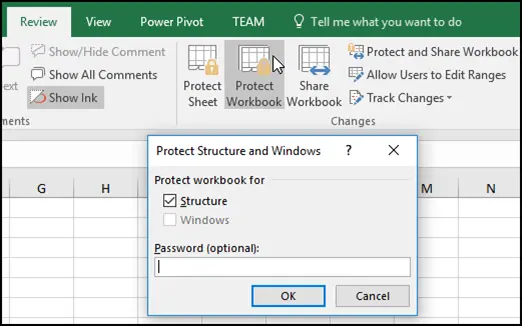
If you would like to ensure that no one can even open your Excel file without your permission, Excel is able to encrypt the entire document using a password.
The following is how to lock an Excel file using a password:
- Open your Excel file.
- Click File in the upper left corner.
- Select Info, and then click on Protect Workbook.
- Choose Encrypt with Password.
- Enter your password, and then click OK.
- Re-enter the password to confirm.
Now your file is securely locked up password protect an excel worksheet. Whenever someone attempts to open it, Excel will prompt them for the password. They won’t be able to open it or even view anything in the file without the right password.
This is a great way to utilize Excel encryption in order to lock up the entire file. It secures everything from your data, formulas, and sheets from others.
How to Lock an Excel Worksheet to Prevent Editing
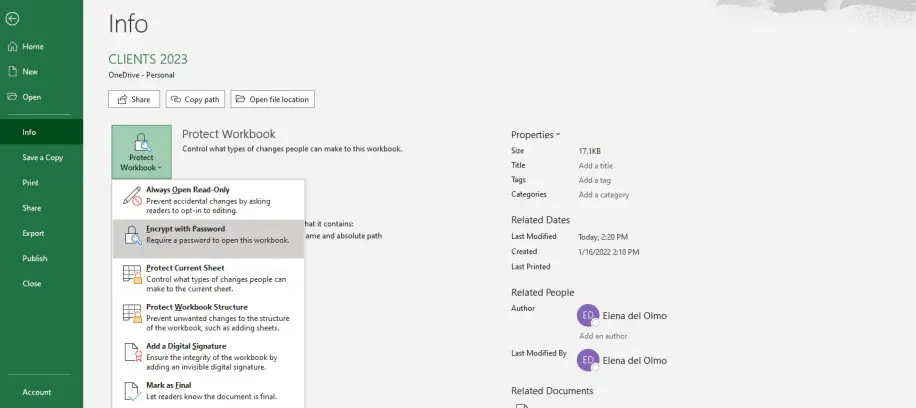
There are times when you may not wish to lock the whole file. You may want someone else to open the Excel sheet but not make any edit to it. If that is the case, you can lock a single sheet.
This is how you prevent an Excel sheet from being edited:
- Open your Excel file and navigate to the sheet you would prefer to lock.
- Click on the Review tab.
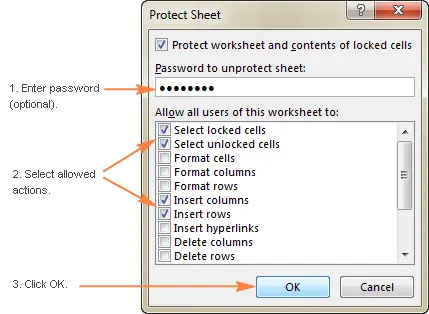
- Click on Protect Sheet.
- Type in a password.
- Select what you’d like other people to be able to do (such as selecting or sorting cells).
- Click OK and enter the password.
Your worksheet is protected now. Other people can see your data but can’t do anything with it unless they know the password.
How to Password Protect Excel Cells
At times you may not want to lock the whole worksheet just certain key cells. For instance, perhaps you would want to protect your total formula or particular columns that ought not to be altered.
This is how you lock cells using password in Excel:
- Highlight all the cells in your sheet (you can use Ctrl + A).
- Right click anywhere and select Format Cells.
- Go to the Protection tab.
- Uncheck Locked and hit OK.
- Highlight only the cells you want to lock.
- Right click again, select Format Cells, and then check Locked.
- Go to the Review tab and click on Protect Sheet.
- Input your password and then again to confirm.
Now only your chosen cells are now locked. Others can still modify the rest of the sheet. It comes handy when you need to have your team fill data in certain places but not touch critical formulas or totals.
How to Unprotect or Unlock Excel Workbooks or Sheets
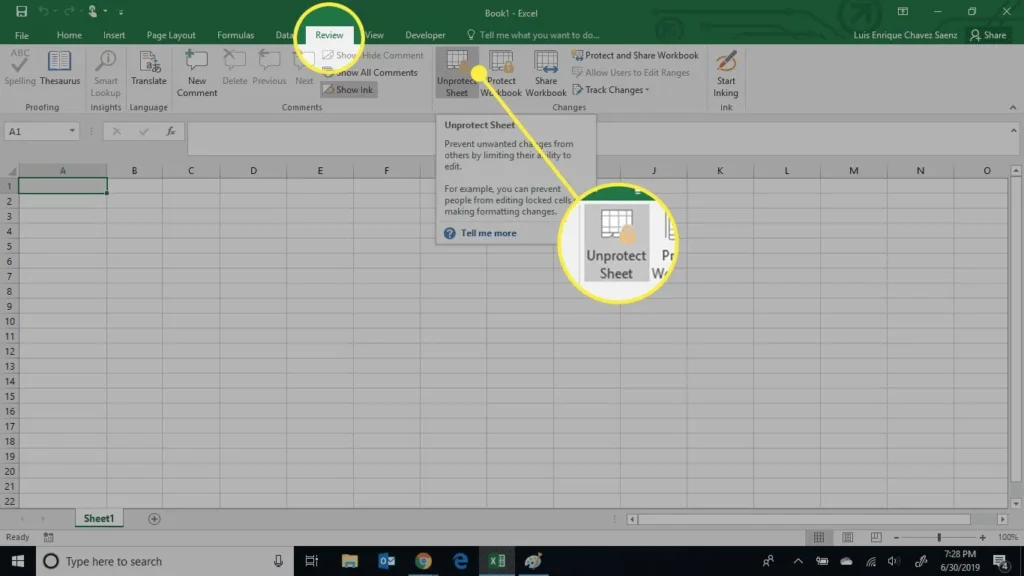
You can unprotect your Excel sheet or document and remove protection if it has been protected and you wish to do so provided you recall the password.
This is how you can unprotect or unlock Excel workbooks or sheets:
To access a worksheet file:
- Click on the Review tab.
- Click Unprotect Sheet.
- Input your password and click OK.
To access the whole workbook:
- Click File → Info → Protect Workbook.
- Select Encrypt with Password.
- Clear the password and click OK.
Your file is now open and available to be edited once again. Keep at all times your password safe somewhere. Excel will not be able to retrieve your password if you forget it.
How to Edit a Locked Excel File Without the Password
If you forgot the password, there is no method in Excel to edit or open an encrypted file. This is one of the methods Excel file protection is based upon.
Here is what you can do if you are not able to access your file:
- Look for an earlier version: perhaps you have an unlocked version copied somewhere along the way.
- Ask the person who shared the file with you; they may recall the password.
- Copy the data: if the file is read-only, copy as much as you can and paste into a new Excel sheet.
Don’t use internet “password recovery” programs. They are not safe and will ruin your file or steal your information. To avoid this in the future, use a password manager or jot down your passwords somewhere secure avoid common password.
Best Tips For Excel File Security
The following are some simple practices that can improve your Excel data security:
- Always maintain a safe password that includes letters, numbers, and special characters.
- Change your passwords every now and then.
- Avoid sharing passwords through email or instant messaging.
- Back up your important Excel files.
- Use Excel encryption or Excel password protection for files containing sensitive information.
- Lock only the cells that do count so that your sheet remains user-friendly.
They are just small steps to protect your data and prevent unwanted access or errors.
Final Considerations
You can password protect an Excel file in a matter of minutes, but it can spare you a world of headache someday. If you work with Excel for office, business, or even domestic records, it is always a good idea to apply protection.
Excel provides you with a number of options to protect your data you can encrypt Excel workbooks, lock an individual cell in Excel, or use complete Excel encryption for safeguarding your workbook. All the methods force you to protect your data and remain in control.
So the next time you generate or send out an Excel file, spare a few seconds to include a WPA2 password. It’s an easy habit that makes your data private and secure. Securing your Excel document isn’t being secretive, it’s being smart and safeguarding your work.
Frequently Asked Questions
You can’t open it without the correct password. Try to recover it using backup files or a password recovery tool. If it’s critical, contact your admin or IT support.
Open the file with the password → go to File > Info > Protect Workbook > Encrypt with Password → clear the password field → save the file.
Close the file on all devices → ensure no one else is using it → delete any temporary “~$” file in the folder → reopen Excel.
Open Excel → click File > Passwords → enter your desired password under “Password to open” → click OK and save the file.
Protect your online accounts with strong, random passwords. It’s 100% free, and we never save or share your data.




